
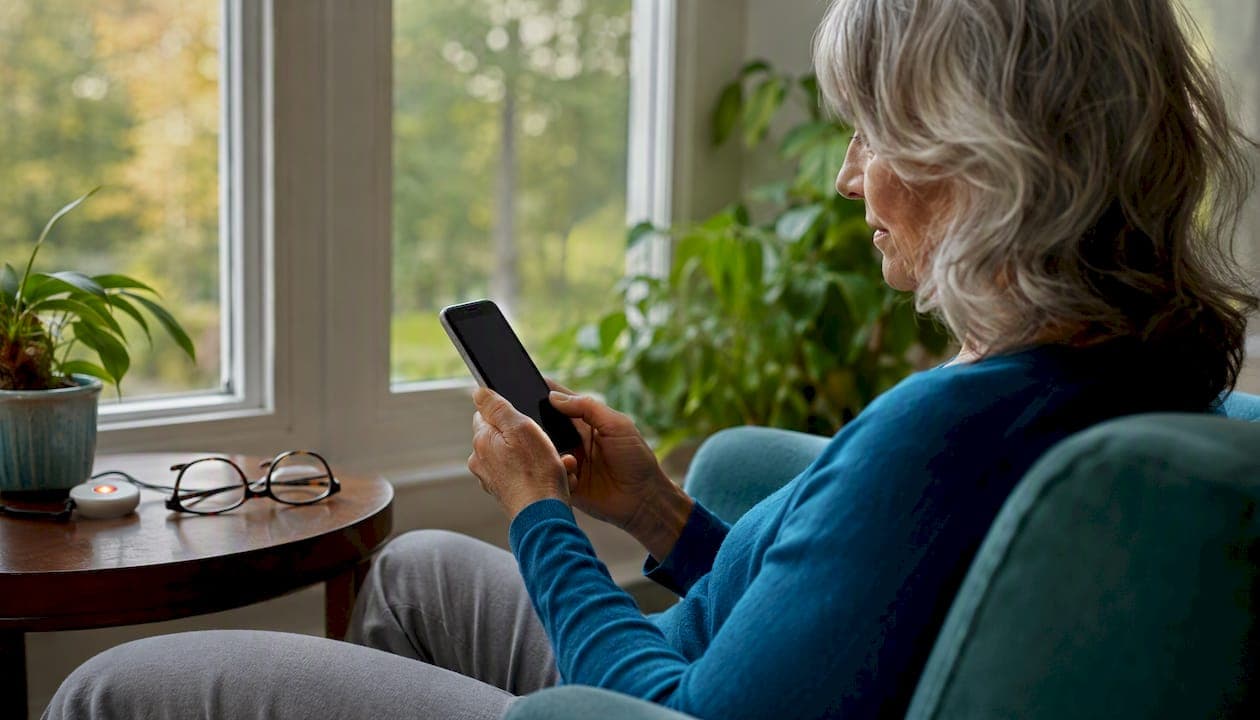
Tech coaching is hands-on, safety-first help learning to use your phone, make video calls, access telehealth, set medication reminders, and reach emergency services when you need them. Your next step is simple: schedule one short session or sign up for a free community class. Trusted starting points include Senior Planet from AARP, your local public library, your Area Agency on Aging, and Agingsolo's own resources for solo agers.
If you're aging alone, getting comfortable with a few key devices isn't a luxury. It's a real safety net. Research from the Society of Actuaries confirms that technology supports solo agers through telehealth, social connection, shopping, and home safety monitoring. One short session with a patient, qualified coach can change what's possible for you.
Table of Contents
- What does tech coaching actually cover for solo agers?
- Which devices and tasks will a coach help you with?
- How do you stay safe and spot red flags?
- Where do you find a tech coach or free program?
- What are the lower-cost ways to keep your skills fresh?
- How do you prepare for your first session?
- Key Takeaways
- Why tech coaching is a quiet form of safety planning
- A focused alternative for solo agers with specific needs
- Trusted U.S. resources for tech help
- FAQ
What does tech coaching actually cover for solo agers?
Tech coaching, in this context, means digital-skills coaching focused on safety and independence. It is not career coaching or developer training. A tech coach sits with you, in person or over Zoom, and helps you do specific things on your actual device until you can do them yourself.
Realistic outcomes after just a few sessions include:
- Making and receiving video calls with family or a doctor
- Logging into a telehealth portal and joining a virtual appointment
- Setting up medication reminders on your phone or a dedicated device
- Adding emergency contacts and activating Medical ID on your smartphone
- Using a personal emergency response system (PERS) confidently
- Creating and storing passwords safely
Formats vary. Some coaches visit your home. Others work over Zoom. Community classes at libraries or senior centers are often free and run in small groups. Adult-education research shows that one skill per session, with repetition and peer support, produces the strongest confidence gains for older learners. Short follow-up sessions matter more than one long marathon class.
Which devices and tasks will a coach help you with?
A good coach meets you where you are. Here are the most common areas covered, roughly in order of priority for solo agers:
- Telehealth portal login: setting up and joining a virtual doctor visit (see Agingsolo's guide on telehealth for solo adults)
During a session, a coach might set up your Medical ID (the emergency info screen visible even when your phone is locked), add your doctor's number as a contact, or walk you through joining a video appointment step by step. Community programs like Silver Tech 101 confirm these are among the most requested tasks older adults want help with.
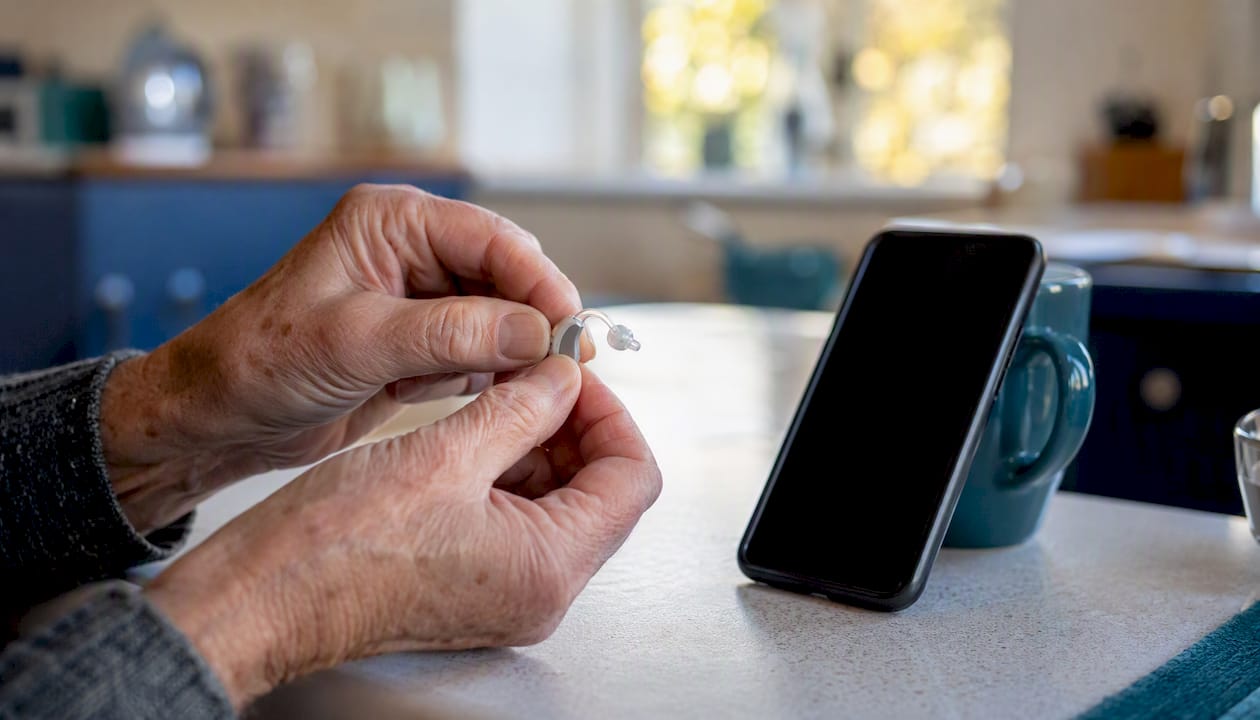
Accessibility adjustments are part of the work too. Larger text, voice control, hearing-aid Bluetooth pairing, and simplified device settings all fall within a coach's scope. If your current phone feels overwhelming, a coach can also help you decide whether a simplified device would serve you better.
How do you stay safe and spot red flags?
Safety comes first, always. A few firm rules:
- Never share your full password with a coach. They can help you create or reset one without knowing it.
- Use a password manager (like Bitwarden, which has a free version) rather than a notebook anyone can read.
- Keep your phone's software updated. Updates close security gaps.
- Enable Medical ID and emergency contacts on your phone before anything else.
- Two-factor authentication (a code texted to your phone) is a protection, not a nuisance. Keep it on.
Red flags to watch for:
- A helper who asks for your full account login and password
- Anyone who wants cash-only payment with no receipt
- Pressure to buy new hardware or services you didn't ask about
- A request to turn off two-factor authentication "to make things easier"
- Someone who wants to install remote-access software and keep it running after the session
Pro Tip: After any session, go to your phone's settings and review which apps have permission to access your camera, microphone, or location. Remove anything you don't recognize.
Where do you find a tech coach or free program?
Good options exist at every budget level:
- Senior Planet from AARP: — Free live and on-demand classes covering phones, video calls, and online safety, specifically designed for older adults.
- 50+TechBridge: Free self-paced beginner modules with live Q&A, well-suited for adults who want to learn at their own pace.
- Volunteer programs and nonprofit coaches: — Organizations like Silver Tech 101 connect older adults with trained volunteers for hands-on help.
Questions to ask before you book
| Question | What a safe answer looks like |
|---|---|
| Are you affiliated with a program or organization? | Named nonprofit, library, or senior center |
| Can you provide references or a background check? | Yes, willingly |
| What is your rate and cancellation policy? | Clear, written, no pressure |
| Will you need my passwords? | No — they help you reset, not share |
| How do you handle my personal data after the session? | They delete or don't store it |
Pro Tip: A community class is a great low-risk first step. If your needs are more complex — telehealth setup, PERS configuration, or reduced mobility — a paid coach who comes to your home is worth the cost.
What are the lower-cost ways to keep your skills fresh?
One session is a start, not a finish. Skills fade without practice. Sustainable options include:
- Recurring library drop-in hours (many branches hold weekly tech help sessions)
- Senior Planet free ongoing classes and community forums
- Self-paced modules on 50+TechBridge, which you can revisit anytime
- Peer support groups through senior centers or Agingsolo's community group resources
- A monthly 20–30 minute check-in with a trusted friend or family member to review what's working
A simple maintenance plan: schedule device updates on the first Sunday of each month, keep a printed emergency contact list near your phone, and revisit one skill per month.
When to move to paid coaching: if troubleshooting happens weekly, if a new device or major health change requires setup, or if confusion is increasing, a private coach's focused attention is the right call.
How do you prepare for your first session?
Gather these before your coach arrives or you log on:
- Your device(s), fully charged
- A written list of your login emails (not passwords)
- Medicare or insurance card if telehealth setup is on the agenda
- Names and phone numbers of your top three emergency contacts
- One sentence describing your main goal for the session
Tell your coach this at the start:
Permissions during the session: it's fine to let a coach hold your phone and demonstrate. It's not fine to give them your Apple ID or Google account password. After the session, change any password the coach helped you set up, just as a habit.
- Charge your device the night before.
- Write down your goal in one sentence.
- Have your emergency contacts list ready.
- Keep a notepad and pen nearby for the cheat sheet.
- After the session, review app permissions and update any shared passwords.
Key Takeaways
Tech coaching for solo agers works best when it starts with one clear safety goal, uses short repeated sessions, and is backed by free community resources for ongoing practice.
| Point | Details |
|---|---|
| Start with safety tasks | Set up Medical ID and emergency contacts in your very first session. |
| One skill per session | Short, focused sessions build lasting confidence better than long one-time classes. |
| Free options exist | Libraries, Area Agencies on Aging, and Senior Planet offer free or low-cost help. |
| Watch for red flags | Never share full account passwords; keep two-factor authentication on at all times. |
| Agingsolo's clarity session | A 45-minute Zoom session with Agingsolo gives personalized, privacy-minded guidance for your specific devices and safety needs. |
Why tech coaching is a quiet form of safety planning
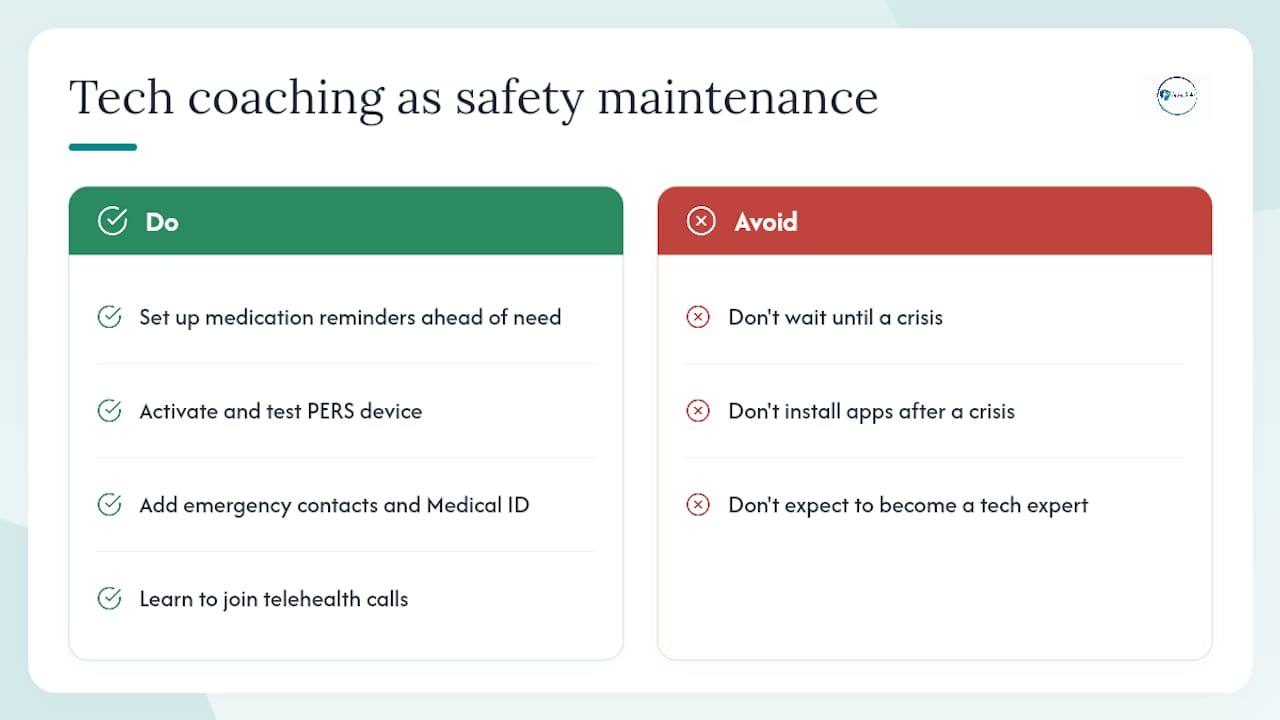
Most articles about tech coaching for older adults focus on the learning curve. What they underestimate is the stakes. For a solo ager, not knowing how to join a telehealth call or activate a PERS device isn't just inconvenient. It's a gap in your safety plan.
The conventional wisdom says: "Take a class when you're ready." But waiting until you're ready often means waiting until there's a crisis. A medication reminder app set up before you need it is worth ten times more than one installed after a fall or a missed dose. The same logic applies to emergency contacts, Medical ID, and telehealth access.
What actually works is treating tech coaching the way you'd treat a smoke detector check: a small, steady investment in your own safety, done before anything goes wrong. Framing it that way, as part of your solo aging safety plan rather than as a technology lesson, changes how it feels. Less intimidating. More purposeful.
You don't need to become a tech expert. You need just enough to stay safe, stay connected, and stay in charge of your own care.
A focused alternative for solo agers with specific needs
If community classes feel too general or your situation is more specific, Agingsolo's 45-minute Solo Aging Clarity Session is built for exactly that gap. It's a private, one-on-one Zoom session focused on your actual devices, your telehealth setup, and your personal safety priorities, not a generic curriculum.
It's a good fit if you need help setting up telehealth access before an upcoming appointment, want to review your emergency contact plan, or have a specific device question that a group class won't have time to address. The session is personalized, privacy-minded, and designed to produce one clear outcome you can act on the same day.
To get started, visit Agingsolo's guide on maintaining independence at home and book a clarity session from there. Come with your device, your goal, and your questions.
Trusted U.S. resources for tech help
- Using Technology
- Digital skills for independence & well-being: Guidance for adult educators
- Silver Tech 101 — Empowering Seniors Through Technology
- Senior Planet from AARP
- Join 50+TechBridge Free — Digital Skills Training for Adults 50+
For caregivers: When attending a session with the older adult you support, bring a list of their devices, their primary doctor's telehealth portal name, and their emergency contacts. Your presence helps the coach tailor the session and gives the older adult a familiar face in the room.
FAQ
What is tech coaching for older adults?
Tech coaching is hands-on, one-on-one or small-group help learning to use phones, video calls, telehealth, medication reminders, and emergency devices. It focuses on safety and independence, not technical expertise.
How much does a tech coaching session cost?
Community classes at libraries and senior centers are often free. Private coaches typically charge by the hour or offer short bundled sessions; always ask for a written rate and cancellation policy before booking.
How many sessions does it take to see results?
Most solo agers can handle one core task confidently after a single session. After 3–4 sessions, most people manage video calls, telehealth logins, and basic phone safety without ongoing help.
Is it safe to let a tech coach use my phone?
Yes, with limits. A coach can hold your device and demonstrate steps, but should never need your full Apple ID, Google account password, or two-factor authentication codes. Change any password set during a session afterward as a standard habit.
Where can I find free tech coaching near me?
Start with your public library, your Area Agency on Aging (eldercare.acl.gov), or Senior Planet from AARP. Free self-paced modules are also available through 50+TechBridge for adults who prefer learning at home.