

A Legacy Contact is someone you name in your Apple Account who can request access to specific iCloud data after you die, without needing your password. Add yours now: go to Settings, choose your name, tap Sign-In & Security, then Legacy Contact, and save or share the access key that appears. That one-step matters more than anything else in this guide.
TL;DR:
- Apple requires iOS 15.2 or later and two-factor authentication for a Legacy Contact option to appear in Settings.
- Sharing the access key via iMessage automatically stores it in a recipient’s Apple account, while printing a QR code ensures a backup version stored securely.
- Legacy Contact access is limited to photos, messages, notes, files, contacts, calendars, and iCloud backups, excluding passwords, payment info, and Apple ID credentials.
- Requests for access require submitting the key along with a death certificate and birth date, with Apple approving requests manually within a three-year period before data deletion.
- Apple’s system only covers iCloud data; for other accounts like email or banking, users should set up separate legacy tools and maintain a comprehensive digital estate plan.
Table of Contents
- How Do You Add a Legacy Contact on Your iPhone?
- How Do You Share and Store the Access Key Safely?
- What Can and Can't a Legacy Contact Actually See?
- How Does a Legacy Contact Actually Request Access?
- Can You Change or Remove a Legacy Contact Later?
- What Should You Plan Beyond Apple's Legacy Contact?
- Naming My Legacy Contact Didn't Feel Heavy. It Felt Like Care.
- Want Help Organizing Your Whole Digital Estate?
- Sources
- FAQ
How Do You Add a Legacy Contact on Your iPhone?
Before you tap through Settings, check three things. You need iOS 15.2 or later (macOS Monterey 12.1 or later on a Mac), an Apple ID that is actively signed in, and two-factor authentication turned on for your account. Without two-factor authentication enabled, the Legacy Contact option will not even show up in the menu, according to Apple Support.
Once those boxes are checked, here is the path:
- Open Settings and tap your name at the top.
- Tap Sign-In & Security, then Legacy Contact.
- Tap Add Legacy Contact and follow the prompts, verifying with Face ID or your passcode.
- Choose someone from your contacts, or invite them by entering a phone number or email address.
- Decide how to share the access key: send it directly through iMessage, or tap Print a Copy to save a physical version with a QR code.
- Repeat the process if you want to name a second or third Legacy Contact. Apple allows more than one.
You can revisit this same screen anytime to view your current Legacy Contact's access key, resend it, or print a fresh copy if the first one gets lost.
Pro Tip: If your Legacy Contact has an iPhone or iPad and accepts your invitation over iMessage, their access key gets stored automatically in their own Apple Account settings. No printing required, and no risk of them misplacing a slip of paper.
How Do You Share and Store the Access Key Safely?
The access key is only useful if someone can actually find it later. Apple gives you two sharing routes, and each one changes what you should do next.
-
iMessage invitation: if your Legacy Contact has a compatible Apple device, accepting the invite stores the key inside their account automatically.
-
Print a Copy: generates a page with a QR code, ideal for anyone without an iMessage-capable device, or as a backup even if they do.
For the printed version, don't leave it loose in a kitchen drawer. Keep it inside an estate planning packet, a safe deposit box, or an encrypted password manager that supports emergency access sharing. A lot of solo agers keep both a digital copy and a paper copy, filed alongside a will or power of attorney, because redundancy beats convenience when the stakes are this specific. After sending or printing the key, follow up with your contact directly. A quick text confirming "you got that, right?" closes a gap that Apple's system leaves wide open.
What Can and Can't a Legacy Contact Actually See?
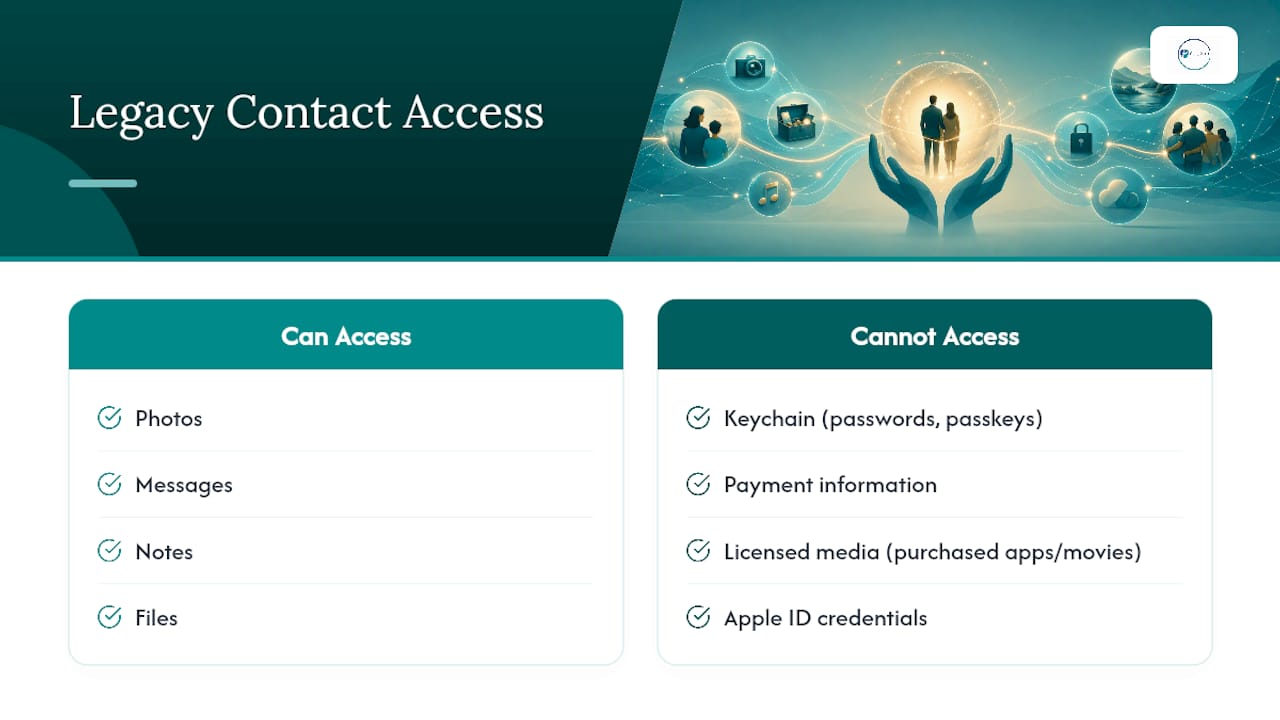
Your Legacy Contact gets a defined slice of your digital life, not the whole thing. Once approved, they can access photos, messages, notes, files, contacts, calendars, and iCloud backups, along with app data tied to your iCloud account.
Several categories stay locked no matter what. Keychain data, meaning saved passwords and passkeys, is excluded entirely. So is payment information, licensed media you purchased through Apple (think movies or apps tied to your account), and your Apple ID credentials themselves. The process is not a password bypass. Apple's own guidance is direct on this point: a Legacy Contact cannot simply unlock your phone with a passcode guess or dig into your Keychain, since the access request process creates an entirely separate legacy Apple ID rather than handing over your original one. Your contact can inherit your memories and files, but they cannot inherit your subscriptions or resell your app library.
How Does a Legacy Contact Actually Request Access?
When the time comes, your Legacy Contact starts the process at Digital-legacy or through the same Legacy Contact screen in Settings on their own device.
- They submit the access key you gave them, along with a certified copy of the death certificate and your date of birth.
- Apple reviews the request manually. Both documents are required. Without either one, Apple typically will not grant access and may point the requester toward a court order instead.
- Once approved, Apple creates a legacy Apple ID containing your eligible data. The contact must set up two-factor authentication on this new legacy account before using it.
- A three-year clock starts the moment that first request gets approved. During those three years, your Legacy Contact can access the account. After that window closes, the legacy account and its data are deleted, permanently.
Approval also triggers Activation Lock removal on your devices, which matters if your Legacy Contact plans to wipe and reuse your old iPhone or iPad rather than let it sit in a drawer.
Can You Change or Remove a Legacy Contact Later?
Life changes, and so do your Legacy Contacts. You can update them anytime in the same Settings menu where you added them.
- To remove someone, open Legacy Contact, tap their name, and select Remove.
- To add another, repeat the original setup steps. Multiple contacts act independently of each other.
- To resend a lost key, tap the existing contact and choose to view or print the access key again.
Keep in mind that whoever gets an approved request first starts that three-year countdown for everyone, since the account and its data become reachable the moment access is granted. If the access key ever goes missing entirely, don't panic, but don't assume it's recoverable either. Without it, Apple may require a court order before releasing anything, which turns a five-minute Settings task into a months-long legal process for the people you meant to help.
What Should You Plan Beyond Apple's Legacy Contact?
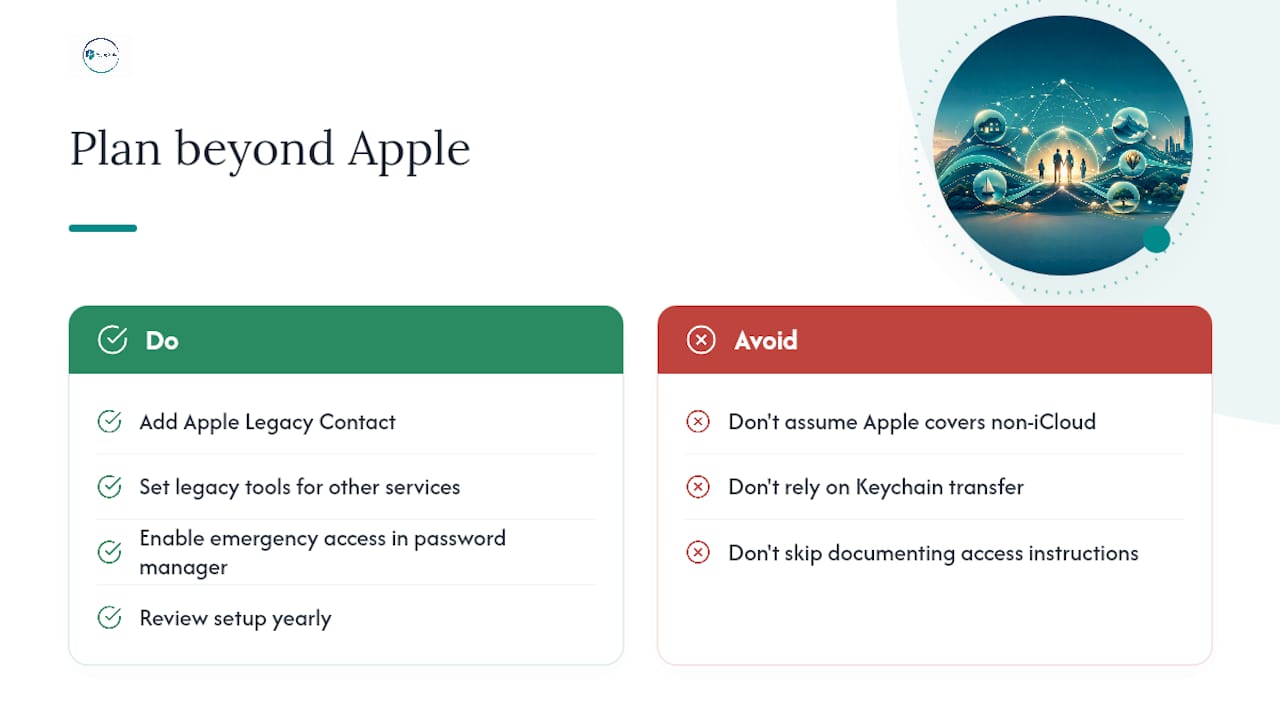
Apple's tool covers iCloud and nothing else. It does not touch your Google account, your email provider, your online banking, or any cryptocurrency wallets you hold. If those matter to you, set up Google's Inactive Account Manager or the equivalent legacy tool for each service you actually use.
A password manager with emergency access sharing fills the biggest gap Apple leaves behind, since Keychain items never transfer through the Legacy Contact process. Write down where each access instruction lives, file it with your estate paperwork, and revisit the whole setup once a year. Our guide on digital legacy planning for solo agers walks through the crypto and two-factor pieces in more depth.
Pro Tip: Set a recurring yearly reminder, maybe near your birthday, to reopen Legacy Contact settings and confirm the person you chose is still the right one.
Naming My Legacy Contact Didn't Feel Heavy. It Felt Like Care.
I printed the access key for a friend last spring, folded it into an envelope, and handed it over during coffee. It felt less like planning for death and more like telling her, plainly, that I trust her. That's the whole spirit of this. You're not preparing for loss. You're extending a small, steady act of trust to someone who already has your back. Take five minutes today: add the contact, save the key, and go back to living.
— Mike
Want Help Organizing Your Whole Digital Estate?
Setting up a Legacy Contact takes five minutes, but knowing where every password, account, and access key lives across your entire digital life is a bigger project, and most people put it off because it feels scattered rather than hard. A clarity session offers you dedicated time to map out your digital estate with someone familiar with solo aging, rather than a generic estate lawyer working from a template.
In one session, you'll walk through where your access keys are stored, how your password manager's emergency access is set up, and what happens to accounts Apple's tool never touches, including crypto wallets and email logins. It's not a replacement for the free Legacy Contact steps above. It's the conversation that happens after, when you want a second set of eyes on the whole picture. Book a Solo Aging Clarity Session for $97 and leave with an actual plan instead of a folder of loose ends.
Sources
- How to add a Legacy Contact for your Apple Account - Apple Support
- Digital Legacy
- How to set up a Legacy Contact for your iCloud account - Macworld
FAQ
Is Apple's Legacy Contact a Good Idea?
Yes, for most iPhone users it's a straightforward, free safeguard that takes minutes to set up and gives someone you trust a defined path to your photos, messages, and files without a court order or a password guess.
What Happens if You Don't Set a Legacy Contact?
Without one, whoever needs your iCloud data after you die will likely need a certified death certificate and, in many cases, a court order before Apple releases anything.
How Do You Make Someone Your Legacy Contact on Your iPhone?
Go to Settings, tap your name, then Sign-In & Security, then Legacy Contact, and follow the prompts to choose a contact and share their access key.
Where Do You Find Legacy Contacts on Your iPhone?
They live in the same spot you set them up: Settings → your name → Sign-In & Security → Legacy Contact, where you can view, resend, or remove them anytime.