
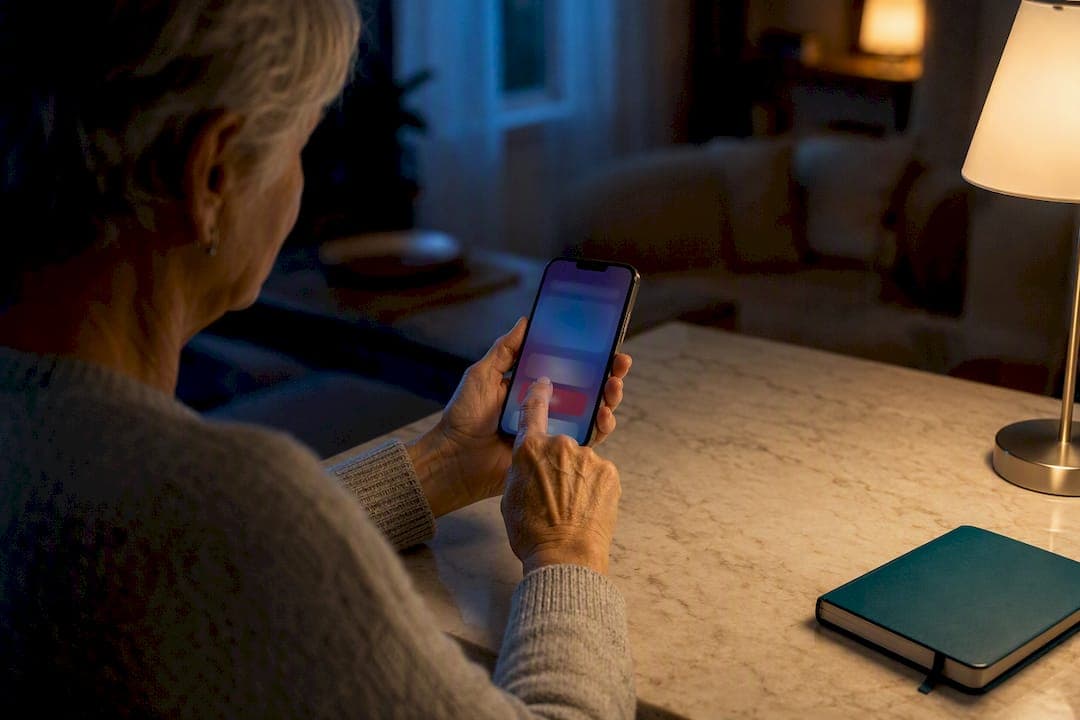
Open the Health app, tap your profile picture, and select Medical ID, then tap Edit or Get Started. Turn on Show When Locked and Share During Emergency Call so first responders can see your information without unlocking your phone. Then fill in allergies, conditions, medications, blood type, and at least one emergency contact, and tap Done to save.
TL;DR:
- Enabling "Show When Locked" is essential to ensure first responders can access your Medical ID without unlocking your phone during an emergency.
- Filling out key fields like allergies, medications, blood type, and emergency contacts improves your Medical ID's usefulness in critical moments.
- Updating your Medical ID promptly after health changes and reviewing it annually keeps the information accurate and reliable.
- Setting up and testing your Medical ID takes only a few minutes and confirms all emergency details and contact buttons function correctly.
- Sharing your emergency contacts and informing them beforehand is crucial, as the iPhone does not notify contacts when they are added.
Table of Contents
- How to Set Up Your Medical ID in the Health App
- Make Your Medical ID Visible During Emergencies
- Adding Emergency Contacts (and Signing Up as an Organ Donor)
- What Information Actually Belongs in Your Medical ID
- How to Test and View Your Medical ID from the Lock Screen
- Troubleshooting Common Medical ID Problems
- Keeping Your Medical ID Accurate Over Time
- Why I Finally Set Up My Medical ID
- Sources
- FAQ
How to Set Up Your Medical ID in the Health App
You don't need any special tech skill for this, and you don't need anyone hovering over your shoulder to help. Give yourself five quiet minutes and a cup of coffee, and you'll have it done.
Here's the exact path:
- Open the Health app on your iPhone.
- Tap your profile picture in the top right corner.
- Select Medical ID, then tap Get Started (or Edit if you've already created one).
- Enter basic info: your name, date of birth, and any conditions worth flagging.
- Fill in the health fields that matter most to a stranger trying to help you.
- Add emergency contacts pulled from your existing Contacts app.
- Tap Done in the top right corner to save everything.
The fields you'll want to complete include:
- Medical conditions (diabetes, heart conditions, epilepsy, and so on)
- Medical notes (anything a paramedic should know at a glance)
- Allergies and reactions
- Medications you take regularly
- Blood type
- Organ donor status
- Height, weight, and language you're most comfortable communicating in
According to Apple's own setup instructions, your entries save automatically as you go, though tapping Done at the end confirms everything is locked in. There's something quietly satisfying about seeing that screen fill in. It's one of those small tasks that feels bigger once it's finished.
Make Your Medical ID Visible During Emergencies
A Medical ID that's filled out but hidden doesn't help anyone. This is the step people skip, and it's the one that actually matters most.
Show When Locked lets first responders view your Medical ID straight from your Lock Screen, no passcode required. Without this toggle on, your carefully filled-in information stays sealed inside a phone nobody can open.
Share During Emergency Call does something different — it helps you share medical records securely for a second opinion during emergency calls. According to Apple, turning this on shares your Medical ID with emergency services automatically when you call 911 in the U.S. or Canada, and it may share ongoing location updates with your emergency contacts too.
- Both toggles live right on the Medical ID edit screen.
- Related location permissions sit under Settings → Privacy & Security → Location Services → System Services → Emergency Calls & SOS.
- Enhanced Emergency Data availability depends on your carrier and region, and it comes with its own privacy prompts you can review before agreeing.
Adding Emergency Contacts (and Signing Up as an Organ Donor)
Your Medical ID is only as useful as the people listed on it. Pull contacts straight from your phone's address book, then assign each one a relationship label, like "sister" or "neighbor down the hall," so responders know exactly who they're calling.
One detail that catches people off guard: your iPhone does not notify anyone when you add them as an emergency contact. A message only goes out after an actual emergency call ends, per Apple Support, and you can cancel that message if you catch it in time. That means the responsibility to tell people falls on you.
- Call or text each contact and let them know you've listed them.
- Double-check that their number is current, not the one from three phones ago.
- Look for the organ donor signup link right inside the Medical ID screen if that's something you want on record.
- Revisit relationship labels whenever a contact's role in your life changes.
What Information Actually Belongs in Your Medical ID
Not every detail needs to go on this screen. Think about what a paramedic standing over you at 2 a.m. actually needs to know in the next ninety seconds.
The essentials: allergies, current medications, major medical conditions, blood type, organ donor status, and your emergency contacts. These are the fields Apple designed the feature around, and they cover most emergency scenarios.
Beyond that, a few extras genuinely help:
- Primary language, especially if English isn't your first
- Mobility limitations or use of a wheelchair, walker, or cane
- Durable medical equipment like a pacemaker or insulin pump
- Any standing ICU or resuscitation alerts you want known
Use the Notes field for context that doesn't fit elsewhere, but skip anything you wouldn't want a random passerby reading over an unlocked phone.
Pro Tip: Set a yearly reminder, maybe your birthday, to open Medical ID and check it's still accurate. Update it immediately after any new diagnosis or medication change instead of waiting for that annual check.
How to Test and View Your Medical ID from the Lock Screen
Testing takes thirty seconds, and it's the only way to know your setup actually works the way you think it does.
- Lock your iPhone.
- Tap Emergency on the passcode entry screen.
- Tap Medical ID to view exactly what a first responder would see.
- Check that your emergency contacts show call buttons that actually work, and that every field you filled in is displaying.
If you wear an Apple Watch, press and hold the side button until the Medical ID slider appears, per Apple's guidance, and test it the same way.
Troubleshooting Common Medical ID Problems
If your Medical ID isn't showing on the Lock Screen, start with the basics: confirm Show When Locked is toggled on and that you tapped Done after your last edit. Half of the "it's not working" complaints trace back to an unsaved edit.
Other fixes worth trying:
- Force-close the Health app, then reopen it.
- Restart your iPhone if a screen seems frozen or stuck mid-edit.
- Update to the latest iOS version if the app behaves oddly.
- If Share During Emergency Call doesn't seem active, check Location Services and the Emergency Calls & SOS system service under Privacy & Security.
- If none of that resolves it, contact Apple Support directly, or ask a trusted friend or family member to walk through the setup with you on a video call.
Keeping Your Medical ID Accurate Over Time
A Medical ID is only trustworthy if it reflects your actual life right now, not the version of you from two years ago.
Update it after any new diagnosis, a medication change, or a procedure, and give it a full review at least once a year. When you add or swap an emergency contact, tell that person directly since the phone won't notify them for you. Keep their info current in your Contacts card too, since Medical ID pulls straight from there.
- Consider a wallet card or medication list as backup in case your phone is lost, damaged, or dead. Aging Solo's medication list card templates make that redundancy simple to set up.
- Pair Medical ID with Emergency SOS, but treat Medical ID as your foundational health record.
- If you're building out a fuller safety plan, a living alone emergency planning guide covers more ground than any single phone feature can.
- Reviewing your emergency contacts annually keeps the whole system honest.
Why I Finally Set Up My Medical ID
I put this off for months, the way you put off things that feel like admitting something. Then a friend fell on a hiking trail with no one else around, and it turned out fine, but it rattled me enough to finally sit down and fill mine out.
It took ten minutes. Afterward, I didn't feel more fragile. I felt more free, actually, like I'd quietly removed one more reason to hesitate before living my life exactly how I want to live it.
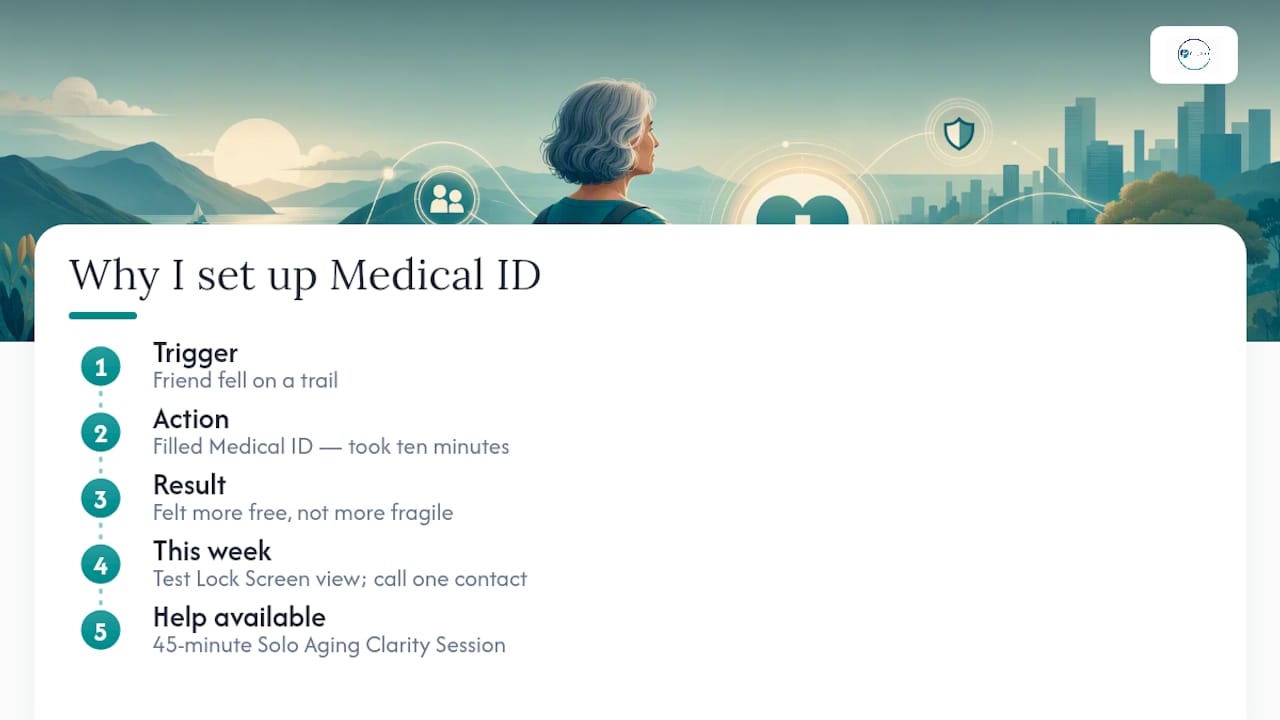
Two things worth doing this week: test your Lock Screen view right now, and call one person to tell them you've listed them as your contact. Small, doable, done. Being solo has never meant being unprepared for the good, full life you're already building, and a little groundwork like this just lets you get back to living it.
If you want help thinking through the bigger picture, from housing to support networks to what happens if you need more help down the road, a Solo Aging Clarity Session with Aging Solo walks through it with you, one conversation, forty-five minutes, real answers.
— Mike
Sources
This guide draws on Apple's official Medical ID instructions, Apple Support's Health app walkthrough, and practical explainers from Popular Science, Engadget, and Macworld.
This article is general information, not a substitute for advice from a qualified doctor. Consult a qualified healthcare professional about your own circumstances before acting on anything here.
- Set up your Medical ID in the Health app on your iPhone - Apple Support
- How to set up Medical ID, emergency contacts and Emergency SOS - Popular Science
FAQ
Is it worth setting up a Medical ID on an iPhone?
Yes. It lets first responders see your allergies, medications, conditions, and emergency contacts straight from your Lock Screen without needing your passcode, which can matter in the exact moments when every minute counts.
How do I make my Medical ID visible on my iPhone?
Open Medical ID inside the Health app and turn on Show When Locked. Without that toggle enabled, your information stays hidden even after you've filled it all in.
My iPhone is stuck on the Medical ID screen. How can I fix it?
Force-close the Health app and reopen it, or restart your iPhone if the screen won't respond. If that doesn't clear it, update iOS or reach out to Apple Support.
What is the purpose of the Medical ID feature on an iPhone?
Medical ID gives emergency responders instant access to your critical health details and emergency contacts, and it can automatically share that information with emergency services when you place a 911 call in the U.S. or Canada.