
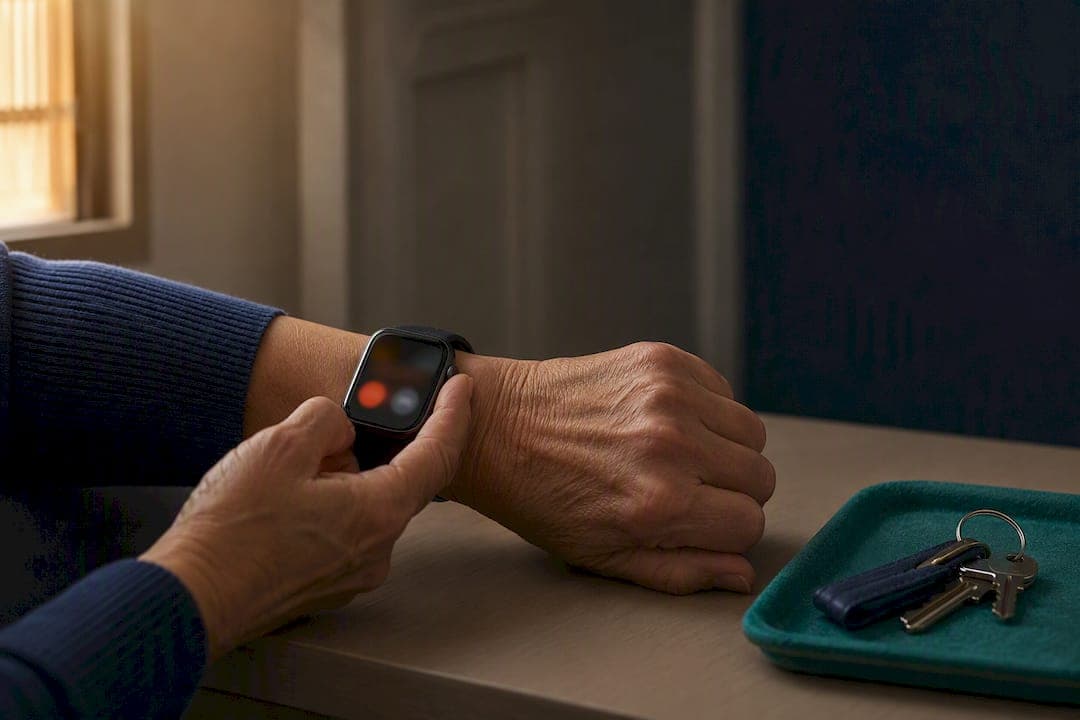
Press and hold the side button, or drag the Emergency Call slider, and your Apple Watch will call local emergency services, share your location, and text your emergency contacts. That's the whole promise of Apple Watch Emergency SOS in one move. Fall Detection and Crash Detection can trigger the same sequence automatically if you're hurt and can't reach the button yourself, which matters most on the days you're moving through your house alone.
TL;DR:
- Emergency SOS can connect via cellular, Wi-Fi, or satellite, but satellite functionality is limited to Apple Watch Ultra 3 and depends on clear sky views.
- Automatic triggers like Fall Detection and Crash Detection require Wrist Detection to be enabled and may produce false alarms during vigorous activity or bumps.
- To prevent accidental SOS calls, disable Hold Side Button, and always confirm your emergency contacts and Medical ID are current and properly configured.
- After an SOS call, your watch continuously updates and shares your location with emergency contacts until you manually stop sharing.
- Solo agers should verify and update their Medical ID and emergency contacts regularly and consider personalized setup guidance through a professional session.
Table of Contents
- How does Apple Watch Emergency SOS work?
- How do you call emergency services from your watch?
- What do Fall Detection and Crash Detection actually trigger?
- When does Emergency SOS via satellite apply?
- How do you stop accidental SOS calls?
- What happens after an Emergency SOS call ends?
- Practical adjustments for solo agers using Apple Watch
- A quiet Tuesday and a working setup
- How Agingsolo helps you make this personal
- Official Apple resources and quick links
- Sources
- FAQ
How does Apple Watch Emergency SOS work?
Emergency SOS reaches help through whichever connection is available: cellular on your watch, Wi-Fi calling through a paired iPhone nearby, or, on Apple Watch Ultra 3, satellite when nothing else connects. Which path works for you depends entirely on your setup.
- Cellular Apple Watch models can call and text on their own, no iPhone required.
- GPS-only models need your iPhone within Bluetooth or Wi-Fi range to complete a call.
- International emergency calling and satellite texting are limited to specific models and regions, so check your watch's capability before you count on it abroad.
- Messages needs to stay installed and selected as your default text app, or your emergency contacts never get the text telling them what happened.
Pro Tip: Leave Wrist Detection and the Emergency Calls & SOS system service turned on. Both quietly sit in the background until the one moment they're the reason help finds you.
How do you call emergency services from your watch?
You have three ways to reach help, and each fits a different moment.
- Drag the Emergency Call slider. This dials immediately with no countdown and no siren, which matters if you're in a situation where staying quiet feels safer.
- Hold the side button. This starts a countdown with a loud audible warning, even in Silent Mode, and calls once it finishes unless you release the button or dismiss the alert.
- Press and hold the Action button on Apple Watch Ultra models, which opens the same Emergency Call slider faster than reaching for the side button.
If your hands are busy or your watch is out of reach, say "Hey Siri, call emergency services," or send a text through Messages describing your situation and location.
What do Fall Detection and Crash Detection actually trigger?
When Apple Watch senses a hard fall, it taps your wrist, sounds an alarm, and shows an alert asking if you're okay. If you don't respond and stay still for about a minute, the watch starts a 30 second countdown and calls emergency services automatically unless you cancel it. Crash Detection works the same way after a severe car impact, using the watch's motion sensors alongside your iPhone's.
- Wrist Detection has to be turned on, or Fall Detection won't attempt the automatic call even after a hard impact.
- Apple Watch can enable Fall Detection by default based on the age entered in your Health profile.
- False positives happen, usually during vigorous exercise or a hard bump, which is exactly why knowing the manual triggers matters as much as trusting the automatic ones.
Pro Tip: Once a year doesn't cut it. Do a quick check of your Fall Detection settings and emergency contacts every few months, the way you'd check smoke detector batteries.
When does Emergency SOS via satellite apply?
Satellite SOS exists for the moments cellular and Wi-Fi simply aren't there, and it's exclusive to Apple Watch Ultra 3. Think hiking trails, remote cabins, or a dead zone on a rural drive. It's a last resort by design, not a replacement for a phone connection, and it behaves differently than a normal call.
- You need a clear view of the sky and a dry watch; tree cover or a wet display can block the connection.
- You'll be guided to point your watch toward the horizon to find a satellite.
- The exchange is text based and slower than a phone call, often walking you through a short questionnaire about your situation.
- Your location, Medical ID, and questionnaire answers get shared with responders through that satellite link.
How do you stop accidental SOS calls?
Accidental triggers happen more than you'd think, often from a watch bumping against a doorframe or getting caught in a sleeve. If you want to stop the side button from starting a countdown, open Settings > SOS on the watch, or My Watch > Emergency SOS on your iPhone, and turn off Hold Side Button. You can still call on purpose using the Emergency Call slider.
- If a countdown starts by mistake, release the side button or tap Cancel before it finishes.
- If the call already connected, Apple's own guidance is to stay on the line, tell the dispatcher it was accidental, and let them close it out properly rather than hanging up.
- Confirm Messages is your selected text app, or your emergency contacts won't get notified at all.
Tell your emergency contacts ahead of time that a false alarm might happen occasionally, so nobody panics if they get a text you didn't mean to send.
What happens after an Emergency SOS call ends?
Once the call wraps up, your watch texts your emergency contacts your current location, unless you cancel that step, and keeps sending updates as your location changes for a while afterward. That's Apple's way of making sure the people who care about you aren't left wondering.
- If you've enabled Share During Emergency Call, your Medical ID gets shared with responders automatically, so keeping it current isn't optional busywork.
- Your watch will remind you every four hours that location sharing is still active; tap Stop Sharing in that notification when you're ready to end it.
- If responders can't pin your location precisely, they may fall back on the emergency address saved in your iPhone settings, so that address needs to be current if you live somewhere new.
- Confirm your emergency contacts are still the right people. A number that's been disconnected for two years does nothing for you in the moment that counts.
Practical adjustments for solo agers using Apple Watch
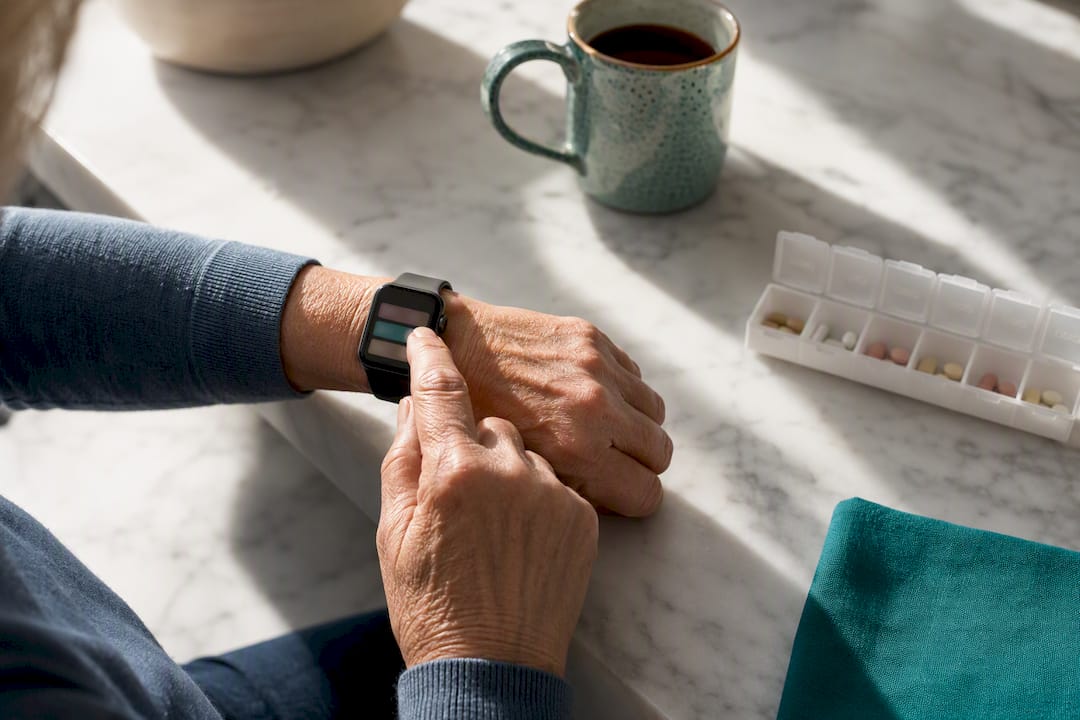
Living alone doesn't mean living unprepared, and getting Emergency SOS to actually work for you takes maybe twenty minutes, not a weekend project. Start with Medical ID: list your medications, allergies, and preferred hospital, then set up and view Medical ID so it's ready if responders ever need it. Our guide to setting up iPhone Medical ID walks through each field.
- Pick two to four emergency contacts you actually trust, tell them plainly what an SOS text from you means, and send a low-stakes test text so nobody's confused later.
- Keep an iPhone nearby or add a cellular plan to your watch; eSIM options for Apple Watch are worth a look if you travel and want connectivity without carrying two devices.
- Turn on Wi-Fi calling wherever you have a reliable network, as a backup when cellular signal drops.
- Write a simple phone tree, one page, and keep it somewhere obvious: your wallet, the fridge, a note in your phone. Our emergency contact plan guide covers how to organize it.
Pro Tip: If you're weighing whether to add a separate fall alert device on top of your watch, tools like Kin Watchdog are built specifically for caregiver notifications and can complement, not replace, what your watch already does.
— Mike
A quiet Tuesday and a working setup
A friend of mine, in her seventies and living alone by choice, told me she finally sat down one Tuesday afternoon and checked her Medical ID. Nothing dramatic happened that day. She just confirmed her sister's number was current and updated her blood pressure medication on the list. That was it.
But she said something shifted after. Not fear leaving, exactly, more like a low hum of worry finally going quiet. Two things worth doing today: verify your Medical ID is current, and confirm your emergency contacts still answer their phones. Independence doesn't mean doing it all unassisted. It means having simple tools that quietly have your back so you can keep living exactly the way you want to.
How Agingsolo helps you make this personal
Apple's guidance covers the mechanics well, but it doesn't know your specific situation: which neighbor to list, whether your preferred hospital is even the closest one, or whether your emergency contacts actually know what to do if that text arrives. That's where a second set of eyes helps. A solo aging clarity session offers personalized guidance to review emergency contact choices, Medical ID entries, and device setup tailored to your daily routine.
The session runs 45 minutes over Zoom and costs $97 one-off. It's not a requirement to use Emergency SOS well; plenty of solo agers get their settings right on their own. But if you'd rather talk it through with someone who understands solo aging specifically, book a Solo Aging Clarity Session and leave the call with a setup that actually fits your life.
Official Apple resources and quick links
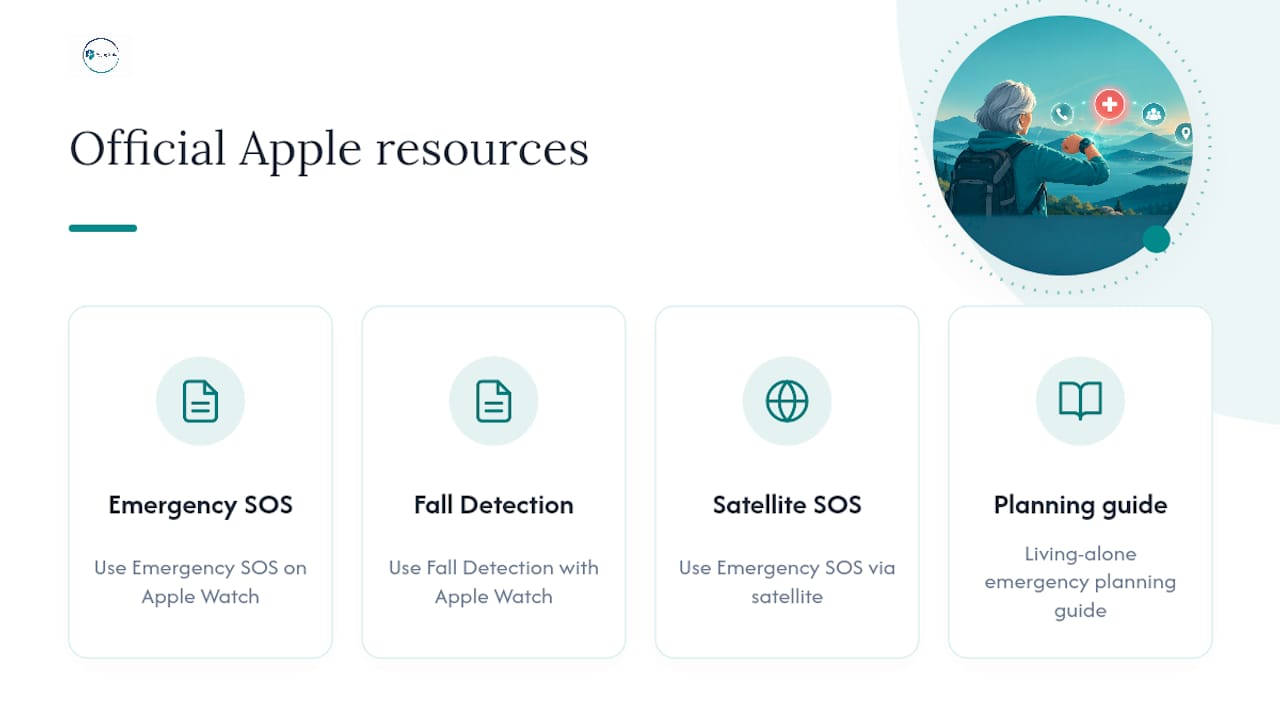
For setup details straight from Apple, see Use Emergency SOS on your Apple Watch, Use Fall Detection with Apple Watch, and Use Emergency SOS via satellite. For broader planning, our living alone emergency planning guide covers what comes after the device setup.
This article is general information, not a substitute for advice from a qualified doctor. Consult a qualified healthcare professional about your own circumstances before acting on anything here.
FAQ
What triggers Emergency SOS on Apple Watch?
Holding the side button, dragging the Emergency Call slider, or pressing the Action button on Ultra models all trigger it manually. Fall Detection and Crash Detection can also trigger it automatically if you're immobile after a hard fall or severe crash.
Will Apple Watch call 911 if you fall?
Yes, if Fall Detection senses a hard fall and you stay still for about a minute, it starts a 30 second countdown and calls emergency services automatically unless you cancel. Wrist Detection has to be enabled for this automatic call to work at all.
Why does my Apple Watch keep sending Emergency SOS messages?
This usually means Hold Side Button to Dial is triggering accidentally, often from the watch bumping something during exercise or a tight sleeve. Turn off Hold Side Button in Settings > SOS on the watch, or under My Watch > Emergency SOS on your iPhone, and use the Emergency Call slider when you do need it.
What happens if you accidentally press the SOS button on Apple Watch?
If the countdown hasn't finished, release the side button or tap Cancel to stop it. If the call already connected, Apple recommends staying on the line, explaining it was accidental, and letting the dispatcher close it properly instead of hanging up.
Does Agingsolo help set up Apple Watch Emergency SOS?
Agingsolo's Solo Aging Clarity Session reviews your emergency contacts, Medical ID entries, and device settings as part of a broader emergency planning conversation. It's an optional $97 session, not a requirement, for solo agers who want personalized guidance beyond Apple's default setup.