
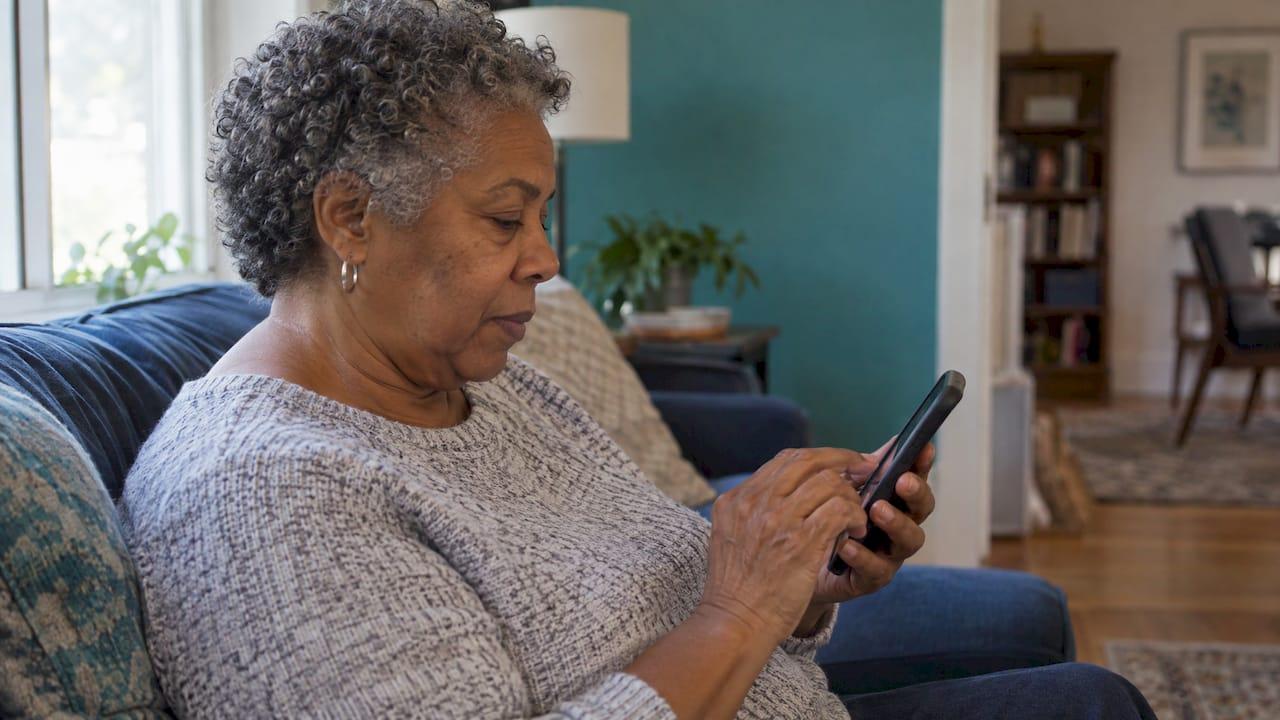
Picture a Sunday afternoon. Your friend Marianne is calling from two states away, the phone buzzes on the arm of the couch, and you can't quite find the green button before it stops ringing. You're not clumsy. The screen was just built for someone with different eyes and quicker thumbs. By the time you call back, the moment has passed a little, and you feel it.
That small sting is common, and it has a gentle fix. Many Android phones have a built-in Easy Mode that makes everything bigger, bolder and simpler, and puts the people you love one swipe away. On a Samsung Galaxy you turn it on in Settings under Display. On a Motorola it lives under Settings, then System. If your phone has neither, a few ordinary settings get you most of the way there.
TL;DR
- Easy Mode is a built-in setting that enlarges icons and text, adds a high-contrast keyboard and helps prevent accidental touches.
- On Samsung Galaxy phones, open Settings, tap Display, tap Easy mode and switch it on. On Motorola, look under Settings, then System.
- Easy Mode puts a contacts page one swipe from the home screen, so a call to a friend takes a single tap.
- No Easy Mode on your phone? Font size, screen zoom and a few accessibility settings do much of the same job.
- Turning it off later is as simple as turning it on, and your apps and data stay put.
Table of Contents
- Why a phone that fits you matters more than it seems
- What Easy Mode actually changes
- How to turn it on, one calm minute
- If you have a Motorola phone
- What if your phone doesn't have it?
- One small evening project: your five people
- Choosing a phone that's easier from the start
- A few feelings that come up
- Perspective
- Talk it through, if you'd like
- FAQ
- Sources
Why a phone that fits you matters more than it seems
For many of us living on our own, the phone is the front door. It's how the neighbor texts about the package, how a niece sends photos, how you confirm the Thursday lunch or join a video call with a book club. When the phone is frustrating, it's tempting to use it less, and that quietly shrinks your world.
So this isn't really a story about settings. It's about making the thing you reach for every day feel friendly. If tapping the right icon takes squinting and a held breath, you'll avoid it. If the screen is clear and your favorite people sit right there on one page, you'll reach out more. Connection tends to follow ease.
And nothing about this means you're "losing" something. Plenty of people of every age turn up the text size because they'd rather not squint on a bright afternoon. It's a preference, and you're allowed to have one.
What Easy Mode actually changes
Samsung describes Easy Mode as a setting that enlarges items on the screen, provides a high-contrast keyboard and helps prevent accidental touches. Here's how that looks in daily life.
Bigger and bolder. Text and icons grow, and the text gets heavier so it's easier to read. Tom's Guide describes it as making text bolder and larger, with a touch-and-hold delay and a black-on-yellow high-contrast keyboard. That keyboard is the part many people love: the letters are hard to miss.
Fewer accidental taps. The touch-and-hold delay means the phone waits a little longer before it decides you're pressing and holding. If your finger rests on the glass for a beat while you think, nothing unexpected happens. Anyone who has accidentally moved an app across the screen knows the value of that.
A page of your people. The same Tom's Guide piece explains that one swipe to the right of the home screen, Easy Mode replaces the usual news feed with a speed-dial contacts page. Put Marianne, your neighbor, your sister and your doctor's office there, and a call is one tap on a big photo and name.
A magnifier one swipe the other way. Swipe left and you find a camera Magnifier shortcut. It's handy for a restaurant menu in dim light, a prescription label or the tiny print on a utility bill.

The result is a phone that feels like it's doing less, which is exactly the point. Fewer things compete for your attention, so the ones you want stand out.
How to turn it on, one calm minute
On a Samsung Galaxy, open Settings, tap Display, tap Easy mode and tap the switch. Your home screen rearranges itself, and that's normal. Give it a few minutes before you decide how you feel. The first look can seem like a lot of bigness, and it usually settles quickly.
A few friendly things to know:
- Menus can look a little different depending on your phone model, carrier and software version, so if "Easy mode" isn't exactly where you expect, use the search bar at the top of Settings and type its name.
- Samsung's own support guide for the Middle East lists Easy Mode as available on Galaxy S24, S25, S26, Z Fold, Z Flip and A-series phones, which covers a lot of the phones people carry today.
- Your apps, photos and messages aren't deleted when you switch modes. If you turn Easy Mode off, the normal screen returns, though a few icons may land in slightly different spots.
Give yourself a week. Most of us need a few days to stop reaching for where things used to be.
If you have a Motorola phone
Motorola's help page for its Android 16 moto g phones says Easy mode gives you an essentials-only layout, larger text and icons, and three-button navigation. You find it at Settings, then System, then Easy mode. The first time, you choose Apply Easy mode. After that, the same screen offers Restore Easy mode when you want it back and Restore Normal mode when you'd like your old layout.
The three-button navigation matters more than it sounds. Instead of swiping up from the bottom edge, you tap a plain Back, Home and Recent button. For many people, a button you can see is far less stressful than a gesture you have to remember.
What if your phone doesn't have it?
This is the question behind a lot of searches, and it's a fair one. Easy Mode isn't an Android-wide feature. How-To Geek notes that simple modes vary by maker: Samsung calls it Easy Mode, OnePlus calls it Simple Mode. A phone from another brand might have a similar toggle under a different name, so try searching Settings for "easy" or "simple" before giving up.
If you find nothing, you can build your own calmer phone with a handful of settings. Tom's Guide points to these as alternatives: font size and style, screen zoom, and the Vision enhancements in Accessibility, which include high contrast, reduced animations and less transparency. These live under Settings, Display and Settings, Accessibility on a Samsung, and similar names show up on other brands.
TechRadar's guide to simplifying any Android phone suggests a short list of moves: clearing clutter from the home screen, enlarging display size and text, turning on high-contrast text, adding contact shortcuts and trimming notifications. It also mentions the touch-and-hold delay, found under Accessibility, then Timing controls.
If you'd like to go further, there are also downloadable home-screen apps, called launchers, built for older users, with big buttons and an emergency button. They are worth a look if your phone has no built-in mode. If you try one, get it only from the Google Play Store or the maker's official site, as TechRadar advises.
One small evening project: your five people
Here's the idea I'd gladly take from all of this. Don't set up the whole phone in one go. Pick one evening, make a cup of something warm, and do just one thing: choose the five people you most want to be able to reach in a single tap.
They don't need to be family. For many solo agers, the list is a mix: the friend from your old job, the neighbor across the hall, a cousin, the person from your walking group, someone who makes you laugh. Add each one to the contacts page with a clear photo if you can. Then try calling one, just to hear their voice and say, "I'm testing my new phone."
That call is the real gift. A phone set up this way invites small, frequent contact, the kind that builds a circle over time. If you want more ideas for growing that circle, our page on social connection for seniors is a warm place to start.
A second small idea: once the phone feels comfortable, ask a friend to video call you for ten minutes and show you something in their kitchen or garden. You'll find out right away how the new screen feels with a real face on it, and you'll have shared a little afternoon.
Choosing a phone that's easier from the start
If you're shopping for a new phone anyway, it helps to look beyond screen size to things like battery life, durability and how long a phone can be repaired. This smartphone buying guide using label data explains how to compare devices on measurable details rather than vague scores. A phone with a long-lasting battery means fewer moments of searching for the charger, and a durable one survives the occasional drop onto the kitchen floor.
And if you buy a Samsung Galaxy or a Motorola moto g, you'll already have Easy Mode waiting under Settings.
A few feelings that come up
Some people worry that using Easy Mode means admitting something. It doesn't. You're choosing a tool the way you'd choose a comfortable chair or reading glasses.
Others worry the phone will look "babyish." It looks bigger and clearer, and nobody sees your screen but you.
And some feel a flash of loneliness when the technology gets in the way, as if the world has moved on without them. It hasn't. You're simply allowed to ask your phone to meet you where you are, and a good setup means the hard part, reaching the people you care about, gets easy again.
If you'd like a gentle look at how the right everyday tools support an independent life, our technology for aging solo page gathers simple ideas. And once you're comfortable with your phone, you might later want to share who to call in an emergency. We cover that in Android emergency info for solo agers, but there's no rush. Enjoy the phone first.
Perspective
When I started thinking about this topic, I wasn't thinking about technology at all. I was thinking about how many solo agers tell us the same thing in different words: they want to stay in touch without feeling like a beginner.
We believe a solo life can be a complete life, full of friendship, curiosity and everyday joy. A phone that is clear and friendly is a small, real part of that. It lets a Tuesday phone call happen. It lets a photo from a faraway friend land and be enjoyed. It lets you say yes to a video chat rather than saying you'll call back.
That is how we approach all of it at Aging Solo Today: lived experience first, practical guidance woven in, and respect for how you want to live. If you'd like to talk through the bigger picture, including how your daily tools and your circle of support fit together, our Solo Aging Clarity Session is a personal conversation built around you.
Mike Crawford
Talk it through, if you'd like
Setting up a phone is one small piece of living well on your own terms. If you'd like to think through the rest, the Solo Aging Clarity Session is a 45-minute Zoom conversation for personalized solo ager planning, offered at $97 as a one-time session. You can read about it and book on our main page.
Prefer to browse first? Our free resources and the Solo Aging 101 page are a clear starting point.
FAQ
How do I put a Samsung phone in simple mode?
Open Settings, tap Display, tap Easy mode, then tap the switch to turn it on, as Samsung describes. Screens can look slightly different by model and software version. If you don't see it, search Settings for "Easy mode."
Do all Android phones have Easy Mode?
No. Samsung calls it Easy Mode and OnePlus calls it Simple Mode, and Motorola offers its own Easy mode under Settings, then System. Phones without one can still be made easier with larger font size, screen zoom and high-contrast settings.
Will I lose my apps or photos if I turn Easy Mode off?
No, switching modes changes how the screen looks, not what's on your phone. Your icons may sit in slightly different places afterward. On a Motorola, you use Restore Normal mode to go back, as the Motorola help page explains.
Can I keep Easy Mode and still use the apps I like?
Yes. Easy Mode simplifies the home screen and enlarges the display, and you can still open the apps you use through the Apps button. If a bigger layout feels like too much, you can instead adjust font size and screen zoom on their own.
Is there something for people who want to go beyond Easy Mode?
Yes. Launchers made for older users add things like big buttons and an emergency button. TechRadar suggests downloading them only from the Google Play Store or the developer's official site.
Sources
- Samsung US: Adjust your Galaxy phone or tablet's display settings
- Samsung Gulf: Using Easy Mode on my Samsung Phone
- Tom's Guide: Your Samsung Galaxy phone comes with a hidden Easy Mode
- Motorola: Simplify your phone (Android 16), moto g
- How-To Geek: How to Simplify the Android UI for Senior Citizens
- TechRadar: Simplify and declutter any Android phone with Easy mode
- FactRated: Smartphone Buying Guide