
Open Settings, tap Safety & emergency (or find the Personal Safety app), and add your emergency contacts and medical details there. Once saved, that android emergency info shows up right on your lock screen, so anyone helping you can see it without unlocking your phone. You can also set up Emergency SOS in the same menu, which calls for help after five quick presses of the power button.
TL;DR:
- Emergency SOS features depend on active permissions and proper setup, including location, microphone, and activity access, to function reliably during an emergency.
- Sharing medical and contact information on the lock screen makes vital details accessible to responders but requires careful selection of sensitive data to balance privacy and emergency needs.
- Automatic emergency calls triggered by pressing the power button five times can be canceled if done during the countdown, but an accidental connection should be explained to dispatchers.
- Emergency sharing and safety check features provide additional layers of protection, such as live location sharing and automated alerts, which require manual activation outside the core SOS functions.
- Maintaining an updated list of trusted contacts and reviewing medical info annually ensures the system remains effective, especially for solo elders living independently.
Table of Contents
- Setting Up Emergency SOS and the Personal Safety App
- Adding Emergency Contacts and Medical Info to Your Lock Screen
- How Emergency SOS Triggers and What Happens Next
- Emergency Sharing, Safety Check, and Public Alerts
- Fixing Common Setup and Alert Problems
- Choosing the Right Emergency Contacts as a Solo Ager
- A Solo Ager's Take on Staying Ready Without Living Braced
- A Personalized Next Step: The Solo Aging Clarity Session
- Where These Steps Come From
- Sources
- FAQ
Setting Up Emergency SOS and the Personal Safety App
Your phone already has this built in. You just have to turn it on and decide how sensitive you want it.
Head into Settings → Safety & emergency → Emergency SOS. On Pixel phones, you may also find a standalone Personal Safety app in your app drawer, though it's worth knowing it's listed as "Personal Safety" in Settings and the Play Store even when the icon on your home screen just says "Safety." That naming mismatch has confused a lot of people searching for a feature they swear they installed.
Here's how to get it running:
- Open Emergency SOS from Safety & emergency, or launch Personal Safety and tap Start setup.
- Choose your trigger: pressing the power button five times, or a press and hold, depending on your device.
- Decide whether you want Start actions automatically turned on, which skips confirmation once the countdown ends, or Require swipe to call, which adds a manual step before anything dials out.
- Grant the permissions it asks for: location, microphone, and physical activity. Skipping these limits what the feature can actually do during a real emergency.
- Review who gets notified and whether location sharing kicks in automatically when SOS activates.
Availability shifts depending on your device. Personal Safety is a Pixel staple, but Samsung, Motorola, and other Android phones bundle similar tools directly into Settings under slightly different names. If you have a newer Pixel with satellite support, you'll also see Satellite SOS, which can connect to emergency services when you're outside normal cell coverage, though Google notes real limitations around device model, region, and line of sight to the sky.
Pro Tip: Turn on "Require swipe to call" for the first month after setup. It gives you a buffer while you get used to where the power button sits in your pocket, and it prevents an accidental call to 911 during setup.
Adding Emergency Contacts and Medical Info to Your Lock Screen
This is the part that actually matters if something happens and you can't speak for yourself. Go to Settings → Safety & emergency → Emergency information, or find Your info inside the Safety app. From there you can add:
- Full name, date of birth, and home address
- Blood type, allergies, and current medications
- Medical conditions a responder should know immediately (diabetes, seizure disorders, pacemakers)
- Organ donor status, if you want it listed
- Up to several emergency contacts, each with a name, relationship, and phone number
Once saved, anyone can view it without your passcode. On the lock screen, they tap Emergency or Emergency call, then select View emergency info. From that screen, they can also tap a listed contact to call them directly, no unlocking required. Google's official emergency guide confirms this is by design, not a security gap. Emergency info stays visible even when your phone is locked specifically because responders need speed more than they need privacy protocols.
That trade-off is worth sitting with for a second. You're choosing to make private medical details visible to anyone who picks up your phone, which is exactly the point. As Android Central's setup walkthrough points out, if that feels like too much exposure, you can limit what you enter. Skip conditions you consider highly sensitive and list only the medications a paramedic would need to know about in the first few minutes.
Device layouts vary. Samsung phones tend to bury this under Settings → About phone → Emergency information or inside their own Samsung Health safety tools, while stock Android and Pixel keep it under Safety & emergency. If you can't find it, search "emergency" in your Settings search bar.
Pro Tip: Set a recurring phone reminder for the same week every year, maybe your birthday month, to open this screen and confirm every number still works. Contacts move, get new numbers, or stop being the right choice for the job.
How Emergency SOS Triggers and What Happens Next
Pressing the power button five or more times starts the countdown. On most devices, that's followed by a five-second window before the phone automatically dials emergency services, unless you've set it to require a manual swipe first.
That countdown exists for a reason. Safeguards built into Emergency SOS include:
- An audible alarm or vibration so you know the countdown started
- A visible on-screen timer you can cancel by tapping before it finishes
- The option to require a swipe or hold instead of an automatic call
- A short delay before location sharing activates, giving you a beat to stop it
Once the call goes through, several things can happen depending on your settings and device. Your phone may automatically start an emergency recording, share your live location with the people you've listed as emergency contacts, and keep sending location updates to first responders for a period after the call connects. Android's Personal Safety documentation describes this as a layered response. The call itself is only one part of it.
None of this works if certain conditions block it. Airplane Mode disables the cellular and data connections Emergency SOS depends on, so the feature won't fire at all while it's on. Battery Saver mode can also restrict background location and network services on some devices, which quietly breaks automatic actions even though the countdown still runs. If your carrier or SIM has restrictions, or you're on a prepaid plan without active emergency calling in your region, the automatic dial may fail even with everything else configured correctly.
Emergency Sharing, Safety Check, and Public Alerts
Emergency SOS gets the attention, but it's not the only safety layer worth turning on.
- Emergency Sharing lets you manually start sharing your live location, battery percentage, and an optional message with chosen contacts, even without triggering full SOS. Open Personal Safety, select Emergency Sharing, and pick who receives it.
- Safety Check works like a check-in timer. Set a duration for something like a solo evening walk, and if you don't check in before time runs out, the app notifies your selected contacts automatically.
- Car Crash Detection uses your phone's sensors to detect a possible collision on supported devices, generally Pixel 4a and later, and calls emergency services automatically if you don't respond within a short window. It requires location and microphone permissions to work, and Google's Pixel emergency guide notes that detection accuracy depends on the phone's position and the severity of impact.
- Crisis alerts, sometimes called Wireless Emergency Alerts, deliver public safety notices for severe weather, missing persons, or public safety threats. You'll find the toggle under Settings → Safety & emergency → Crisis alerts, or under Notifications → Wireless emergency alerts on some devices.
If your phone supports Emergency Location Service and your carrier has it enabled in your region, your device can automatically transmit its location to emergency dispatchers during a 911 call or text, even beyond what's stored in your saved emergency info.
Fixing Common Setup and Alert Problems
Most complaints about this feature come down to a handful of fixable issues.
If you can't find the right menu, use the search bar inside Settings and type "emergency." That surfaces Emergency SOS, Emergency information, and Crisis alerts even when they're scattered across different sub menus on your specific device. If you're looking for the standalone app, remember it may show as "Safety" on your home screen while Settings and the Play Store call it Personal Safety.
If SOS doesn't seem to work at all, check these first:
- Airplane Mode is off
- Battery Saver isn't restricting background location or connectivity
- Location, microphone, and physical activity permissions are granted
- Your Android version supports the feature (very old versions may lack it entirely)
Pro Tip: Never test Emergency SOS by letting it call 911. Switch to "Require swipe to call" mode and cancel before the swipe screen, or test Emergency Sharing instead by sending your live location to a trusted contact and asking them to confirm they got it.
If you trigger SOS by accident, and it happens to nearly everyone once, stay calm. If you're inside the countdown, tap cancel before it finishes. If the call already connects, stay on the line and tell the dispatcher it was accidental. Hanging up abruptly can trigger a callback or a welfare check, which takes longer than just explaining what happened.
Choosing the Right Emergency Contacts as a Solo Ager
The technology only works as well as the people you put behind it. A contact who never answers their phone defeats the purpose, no matter how well the settings are configured.
Build your list with a clear order of priority, following guidance on online therapy safety for UK adults to choose trusted and safe emergency contacts:
- List one to four contacts, ranked by who's most reliably reachable, not just who's closest family
- Pick people who already understand your medical history and preferences, not someone you'd have to brief from scratch
- Include at least one local contact who could physically show up if needed
- Add a backup outside your immediate area in case local lines are down or unreachable
Phone settings are one layer, not the whole plan. Pairing your digital emergency info with a wallet card and fridge note gives a responder or neighbor a second way in if your phone is lost, dead, or locked in a way that blocks access. Update everything on the same schedule, ideally once a year or right after any major medical change, and treat it the way you'd treat renewing a passport: routine, not reactive.
A Solo Ager's Take on Staying Ready Without Living Braced
I think about a friend who takes the same short walk most evenings, past the same three houses, waving to the same neighbor watering her garden. Nothing about that walk looks like risk management. It looks like a life. But she also has her emergency info updated on her phone, and that neighbor's number is one of the two she's listed as contacts.
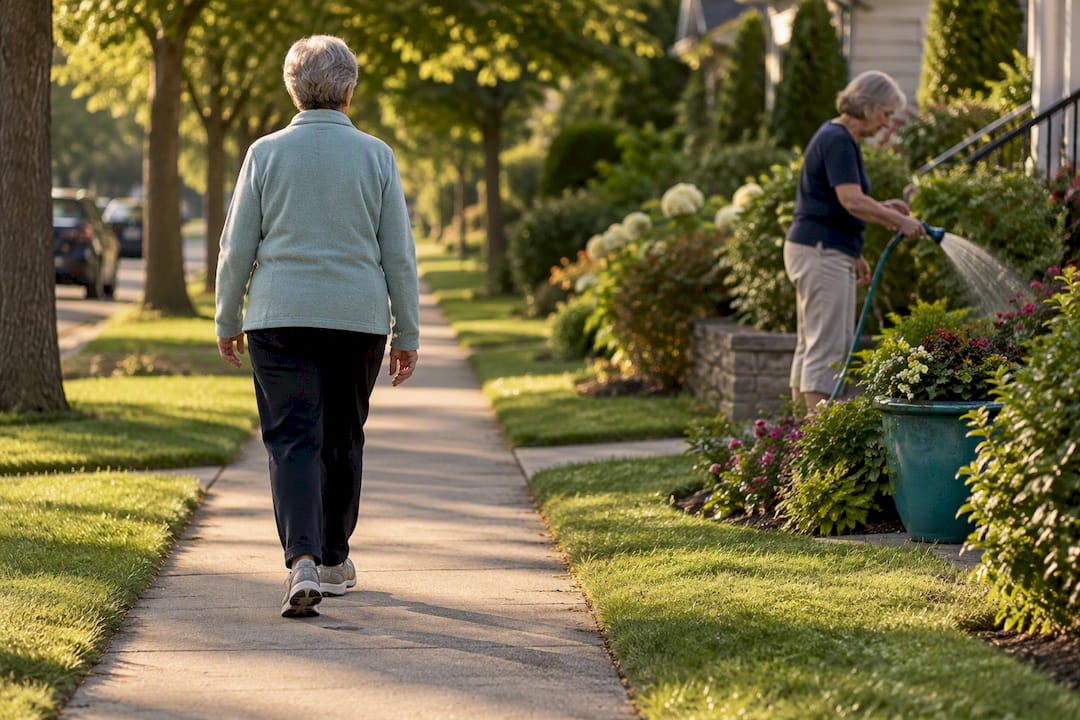
That's the part people miss. Setting this up isn't about bracing for the worst. It's about making sure the full, ordinary life you're living, walks, gardens, neighbors, doesn't get interrupted by something small becoming something bigger because nobody could reach the right person fast enough. Add one contact today. Update your medical info once a year. That's genuinely most of it.
Staying independent doesn't mean staying unreachable. It means building enough connection around you that being alone in the moment never means being alone in the emergency.
— Mike
A Personalized Next Step: The Solo Aging Clarity Session
Getting your phone squared away is real progress, but it answers one piece of a much bigger question: what does a full, workable plan look like for someone aging without a built-in backup system? Agingsolo built the Solo Aging Clarity Session for exactly that gap. It's not another checklist to work through alone. It's a 45-minute Zoom conversation, priced at a flat $97, where you talk through your specific situation with someone who understands solo aging from the inside.
This isn't a required next step, and setting up your emergency info doesn't obligate you to book anything. But if you've gotten this far and you're thinking about the bigger picture, housing, decision-making, who's really on your list beyond emergency contacts, the clarity session turns that thinking into an actual plan. You can also browse Agingsolo's elder planning guide first if you want a fuller picture before you book a session.
Where These Steps Come From
The setup steps above follow Google's own documentation, not guesswork. For exact wording on your device and any changes Google rolls out, these are worth bookmarking:
- Get help during an emergency with your Android phone, Google's core Emergency SOS reference
- How to Use Your Emergency SOS & Personal Safety Apps, Android's overview of sharing and safety check features
- Use your Pixel phone in emergency situations, for Pixel-specific tools like Car Crash Detection and Satellite SOS
- How to add emergency information to your Android phone, a practical walkthrough covering device variations
Sources
- Get help during an emergency with your Android phone
- How to Use Your Emergency SOS & Personal Safety Apps
- Use your Pixel phone in emergency situations
- How to add emergency information to your Android phone | Android Central
FAQ
How Do I View Emergency Info on Android?
From the lock screen, tap Emergency or Emergency call, then select View emergency info. This shows medical details and emergency contacts without requiring a passcode, and anyone can tap a listed contact to call them directly.
What Happens if You Press the Power Button 5 Times on Android?
Pressing the power button five or more times triggers Emergency SOS, which usually starts a five-second countdown before automatically calling emergency services. You can cancel during the countdown, or set your phone to require a manual swipe instead of calling automatically.
How Do I Get My Android Out of Emergency Mode?
If you're inside the countdown before a call connects, tap the cancel button that appears on screen. If the call already went through, stay on the line and tell the dispatcher it was accidental rather than hanging up, since a dropped emergency call can trigger a callback or welfare check.
Why Didn't My Phone Receive an Emergency Alert?
Crisis alerts, also called Wireless Emergency Alerts, can be missed if they're toggled off under Settings → Safety & emergency → Crisis alerts, or if Airplane Mode was active when the alert went out. Some older Android versions or carrier configurations also limit which alert categories your phone receives.
How Do I Add Emergency Contacts on Android?
Go to Settings → Safety & emergency → Emergency information, or open the Personal Safety app and select Your info. From there you can add contacts along with medical details like allergies, medications, and conditions, all of which become visible from the lock screen.