
Three approaches work reliably: emergency access features inside your password manager, two-factor recovery codes stored offline, and platform legacy tools like Google's Inactive Account Manager or Apple's Legacy Contact. None of these covers everything alone. Set up a password manager with a trusted contact plus a small offline kit, and you've covered most of what a loved one would actually need. We'll walk through each piece below.
TL;DR:
- Bitwarden lets a trusted contact request vault access after a chosen delay, from immediate to about three months; Keeper supports up to five contacts.
- Start with view access and a seven to 30 day delay, then test the request together using a noncritical login.
- Print labeled recovery codes for primary email and key accounts, add account addresses and access instructions, and keep the kit where your contact knows.
- Get your contact’s agreement, confirm they can use the password manager, and check estate documents for conflicts with your digital access choices.
Table of Contents
- How password-manager emergency access works and what to set up
- Platform legacy tools: Google, Apple, and what they actually give to a contact
- Two-factor authentication and recovery codes: the forgotten lifeline
- Offline emergency kit: what to include, how to secure it, and who should know about it
- How to choose which emergency-access approach fits you
- Step-by-step setup examples for each method
- People-centered guidance for talking with your trusted contact
- A quiet afternoon that turned into a real plan
- Getting personalized help with your digital-access plan
- FAQ
- Sources
How password-manager emergency access works and what to set up
Most password managers protect your vault with zero-knowledge encryption, which means not even the company storing your data can read your passwords. Only your master passphrase unlocks it. That's good for security and a little daunting for emergency planning, because if nobody but you knows that passphrase, nobody but you can get in.
That's exactly why emergency access features exist. Bitwarden's emergency access system, for example, lets you invite a trusted contact who can request entry to your vault. You set a waiting period, anywhere from immediate to about three months, and if you don't respond to deny the request during that window, access opens automatically. Keeper's emergency access works similarly, supporting up to five trusted contacts with configurable waiting periods, and it also keeps the zero-knowledge architecture intact so your master password itself is never exposed, even to the contact.
Your contact typically gets one of two levels: view access to see your stored logins, or full access that lets them export and use the vault. Most solo agers do fine starting with view access and upgrading later if needed.
Here's what to set up this week:
- Create a long master passphrase, four or five unrelated words work better than a short complex string.
- Turn on multi-factor authentication for the vault itself.
- Invite one trusted contact and name them clearly in the app.
- Set a waiting period that matches your comfort level, 7 to 30 days is a common middle ground.
- Test the system with a noncritical login before you trust it with anything that matters.
Pro Tip: Ask your contact to actually submit a test request once. Watching the approval or waiting-period notification arrive teaches both of you more than reading about it ever will.
Platform legacy tools: Google, Apple, and what they actually give to a contact
Your phone and email provider already have their own built-in plans for when you're gone or unreachable, though they cover less ground than people expect.
Google's Inactive Account Manager lets you choose up to ten contacts and decide what gets shared with them, things like photos, Gmail, or Drive files, after a period of inactivity you select yourself, typically ranging from three to eighteen months. Google's own policies may also lead to account deletion after extended inactivity, so this tool is about data sharing on your terms, not a permanent archive.
Apple's approach is narrower and specifically for after death. A Legacy Contact you've designated can request access to iCloud data using a unique access key, usually alongside proof of death. It's useful for photos, notes, and documents stored in iCloud, but it explicitly excludes iCloud Keychain passwords and passkeys, so it will not hand over your saved logins.
That gap matters. These tools:
- Share specific content types like photos, mail, or files, not your full password collection.
- Operate on inactivity windows or death confirmation, not immediate emergencies like hospitalization.
- Work well alongside a password manager's emergency access, not instead of it.
Think of legacy tools as the second layer, and consider using AI for dementia care platforms to support continuity and caregiver guidance. Your password manager handles live logins and daily accounts; Google and Apple's tools handle the broader digital footprint, mail archives, photo libraries, documents, once a longer-term event has occurred.
Two-factor authentication and recovery codes: the forgotten lifeline
Two-factor authentication keeps your accounts safer, but it creates a real problem for emergency access: if your trusted contact can't receive your text codes or open your authenticator app, they're locked out even with the right password. Recovery codes solve that.
NIST's digital identity guidelines recognize backup codes as an acceptable form of account recovery when a primary authenticator is lost or unavailable, which is exactly the situation your contact may face. Generating and storing them properly turns a locked door into one with a spare key.

Most major account types, email, banking, and cloud storage, offer a one-time recovery code option during setup, and generating this code takes under two minutes per account. (NIST SP 800-63B)
To do this well:
- Generate recovery codes for every account that offers them, especially primary email.
- Label each code clearly with the account name and date generated.
- Store them offline, not just in a phone note, since a locked or lost phone defeats the purpose.
- Rotate codes whenever you change your master passphrase or suspect a device was compromised.
A sealed envelope in a known location beats a digital-only backup every time, because the whole point of a recovery code is that it works when your usual devices don't.
Offline emergency kit: what to include, how to secure it, and who should know about it
Digital tools solve most of this, but a small paper backup catches what they can't. Think of it as the physical twin to your password manager, something your contact can reach even if the internet, your phone, or your accounts are temporarily inaccessible.
Build it with these pieces:
- Labeled recovery codes for your primary email and two or three key accounts.
- A short written instruction sheet: which app holds your passwords and how to request emergency access.
- Your primary account email addresses, written out clearly, since contacts often don't know which address you actually use.
- Device passcodes, if you're comfortable including them, kept separate from the recovery codes.
- A hint toward your master passphrase, never the full phrase itself, something only you and your contact would recognize.
Where you keep it matters as much as what's in it. A home safe works if your contact knows the combination. A sealed envelope with a lawyer or trusted neighbor adds a layer of distance from everyday prying eyes. A safe deposit box is secure but can be slow to access, so it suits long-term planning better than urgent situations.
Brief your contact in plain terms: where the kit lives, what it contains in general, and when to use it. You don't need to walk through every account out loud, just enough so they're not starting from zero.
Pro Tip: Review your kit twice a year, maybe when you change clocks for daylight saving. Accounts close, passwords change, and a stale kit is almost as frustrating as no kit at all.
Avoid putting all of this in one place only. A kit that lives solely in a drawer your contact has never seen becomes a single point of failure.
How to choose which emergency-access approach fits you
The right combination depends less on technology and more on three honest questions: how sensitive are your accounts, how comfortable is your contact with tech, and do you want live access during a crisis or only after death.
Ask your contact directly before you set anything up. A short script works well: "I'd like to name you as my emergency contact for my passwords. You'd only get access if I'm unreachable for a set period, and I can cancel any request you make. Are you comfortable with that?" Getting a clear yes matters more than any technical setting.
Legal considerations belong in this conversation too. Some states follow Uniform Fiduciary Access to Digital Assets Act style statutes, which allow your online tool designations to override instructions in a will in certain circumstances. If you have a power of attorney or an estate plan, make sure your digital-access choices don't contradict it.
| Situation | Recommended approach |
|---|---|
| Single primary email, few accounts | Password manager emergency invite with one trusted contact |
| Multiple financial accounts | Password manager plus offline recovery codes for banking logins |
| High-tech-savvy contact | Shorter waiting period, full vault access |
| Contact less comfortable with apps | Longer waiting period, view-only access, paired with printed offline kit |
A few more things worth checking before you finalize anything:
- Does your contact have their own account with the password manager, since some tools require it to accept an invitation?
- Have you tested the request and approval flow at least once together?
- Is your offline kit's location known to more than just you?
The minimal bundle that covers most solo agers well: one password manager emergency invite, plus labeled recovery codes stored in an offline kit your contact knows how to find.
Step-by-step setup examples for each method
Here's the condensed version for each tool, enough to get started today.
Password manager emergency invite:
- Set a long master passphrase using four or five unrelated words.
- Turn on multi-factor authentication for your vault account.
- Invite your chosen contact by email through the app's emergency access settings.
- Choose a waiting period, 7 to 30 days is a reasonable default.
- Run a test request on a noncritical login to confirm the flow works.
Google Inactive Account Manager:
- Open account settings and find Inactive Account Manager.
- Select which contacts, up to ten, should be notified.
- Choose which data categories, like Gmail or Drive, each contact can access.
- Set your inactivity window, commonly between three and eighteen months.
Apple Legacy Contact:
- Add a Legacy Contact through your Apple ID settings.
- Print or securely store the access key that confirms the relationship.
- Note for yourself and your contact that iCloud Keychain and passkeys are excluded.
Recovery codes:
- Generate backup codes within each account's two-factor settings.
- Label each with the account name and today's date.
- Store printed copies in your offline kit, not solely on a device.
These five minutes per tool add up to a plan that actually functions when it's needed, rather than one that only looks complete on paper.
People-centered guidance for talking with your trusted contact
The technical setup is the easy part. The harder, more human part is the conversation itself, and getting that right protects both your privacy and your contact's peace of mind.
Start simply: "I want to make sure someone I trust can reach my accounts if something happens to me. Would you be willing to be that person?" Most people feel honored to be asked, not burdened.
A few ways to keep the conversation grounded:
- Explain the waiting period so your contact understands they're not getting instant, unsupervised access.
- Walk through one test request together so the process feels familiar rather than theoretical.
- Revisit the arrangement once a year, just to confirm it still fits your life and theirs.
- Keep the conversation about trust and practicality, not worst-case scenarios.
If your situation involves broader planning, like coordinating multiple helpers or tracking contact responsibilities, our emergency contact plan guide walks through building that structure alongside your digital-access setup. For readers also thinking about longer-term digital assets like cryptocurrency or online accounts tied to an estate, our digital legacy planning guide covers that next layer.
A quiet afternoon that turned into a real plan
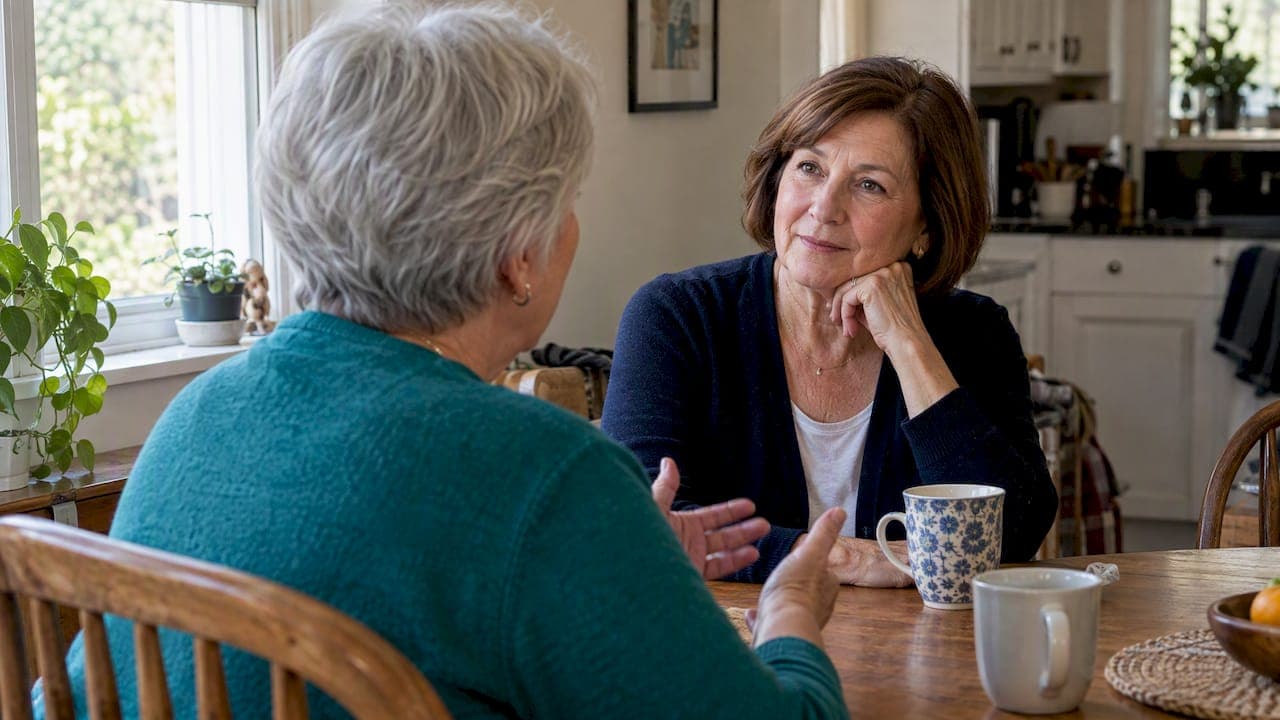
Last spring, a reader named Carol invited her neighbor over for coffee and ended up building her entire password plan at the kitchen table. They weren't filling out forms. They were just talking, about who Carol trusted, what her neighbor felt ready to handle, and which accounts actually mattered.
By the time the coffee was gone, Carol had sent one invitation through her password manager and printed a single recovery code for her email, taped inside a kitchen cabinet her neighbor already knew to check for emergency numbers.
That's the whole plan, really. Invite one person. Print one code. Put it somewhere they'd actually look. The rest is just living, fully and on your own terms, knowing one small thread connects you to someone who'd show up.
— Mike
Getting personalized help with your digital-access plan
Setting up emergency access is straightforward once you know the steps, but figuring out exactly which accounts matter most, which contact fits best, and how your digital plan connects to your broader estate and legal documents is harder to sort out alone.
Our Solo Aging Clarity Session is a 45-minute Zoom consultation built around exactly this kind of personalized planning, emergency access, digital accounts, and the decisions that connect them to your wider plan for aging solo. It fits well if you've started the technical setup but want a second set of eyes on your specific situation.
- A focused 45-minute call built around your actual accounts and contacts, not a generic checklist.
- Priced as detailed on our website, with no ongoing commitment.
- A practical next step if you've read this far and want help applying it to your life.
Book your Solo Aging Clarity Session and leave the call with a plan that's actually yours.
FAQ
What is a good example of a secure password?
A secure password combines length with unpredictability, four or five unrelated words strung together tend to be both strong and memorable, rather than a short string of substituted symbols. Pairing it with multi-factor authentication matters as much as the password itself.
How can I encrypt my password online?
Reputable password managers encrypt your stored logins using zero-knowledge architecture, meaning the data is scrambled before it ever leaves your device and the provider itself cannot read it. Look for this feature specifically when choosing a manager, since not all storage tools encrypt this way.
Why should we not share your passwords?
Sharing a password directly gives someone standing, ongoing access with no way to track or limit what they do, and no way to revoke it without changing the password everywhere it's used. Emergency access features solve the same problem by granting conditional, time-limited, revocable access instead.
How can I protect my data?
Combine a password manager with multi-factor authentication, keep offline recovery codes for your most important accounts, and avoid reusing passwords across sites. Reviewing and updating these protections once or twice a year keeps the plan accurate as accounts and devices change.
Sources
- Bitwarden — Emergency access
- Google Account Help — Inactive Account Manager
- NIST SP 800-63B — Digital Identity Guidelines (authenticators)
- Keeper Security — Emergency Access
- Virginia Code — Uniform Fiduciary Access to Digital Assets Act (UFADAA)